


Shops keep getting blindsided by the aftermarket screen error message ios 17/ios 18 compatibility mess, where a clean install turns into a customer callback circus overnight, and that warning banner sticks like gum on a sneaker, killing trust and margins fast.
Here’s play: glitches aren’t random, they’re baked into firmware gaps and pairing rules, so picking parts blindly is like rolling dice; smart sourcing and diagnostics keep comebacks down and profits steady.
Key Points for aftermarket screen error message iOS 17/iOS 18 compatibility
➔ Root Causes: Missing firmware pairing and device authentication triggers non-genuine warnings and reduced display functions.
➔ Diagnostics: Use software tests, continuity checks, and testing jigs to pinpoint touch, brightness, and cable faults.
➔ Quick Fixes: Reseat flex cables, rollback firmware, and recalibrate brightness to restore core display performance.
➔ Prevention: Source OEM or certified parts, enforce quality control testing, and maintain accurate inventory to prevent component mismatches.
Why Aftermarket Screens Trigger Error Messages on iOS 17/18
After a screen swap, seeing the aftermarket screen error message ios 17/ios 18 compatibility warning can feel frustrating. Many users report aftermarket screen error message ios 17/ios 18 compatibility issues right after a firmware update. Here’s what’s really happening behind those alerts and how aftermarket screen error message ios 17/ios 18 compatibility ties into hardware authentication.
Compatibility conflict between OLED display modules and iOS firmware
At the core of most aftermarket screen error message ios 17/ios 18 compatibility cases is a mismatch between the OLED display module and iOS firmware.
-
Display compatibility depends on firmware calibration files.
-
A recent firmware update may rewrite brightness curves.
-
Poor screen replacement quality affects device performance.
Nested technical factors:
-
Firmware Layer
1.1 Updated driver tables
1.2 Modified gamma calibration
-
Hardware Layer
2.1 Inconsistent OLED voltage mapping
2.2 Touch IC communication lag
| Parameter | OEM Spec (nits/ms) | Aftermarket Avg | Resulting Impact |
|---|---|---|---|
| Peak Brightness | 1000 nits | 820 nits | Dim display alert |
| Touch Latency | 8 ms | 14 ms | Lag |
| Color Delta-E | <2 | 4.8 | Color shift |
| PWM Stability | 240 Hz | 180 Hz | Flicker |
System software lockout from missing device authentication
System software pairs the display through encrypted device authentication. If firmware verification fails, a software lockout may limit True Tone or brightness.
Authentication stack:
-
Secure enclave handshake
-
Serial validation
-
Component recognition flagging
This is why aftermarket screen error message ios 17/ios 18 compatibility often appears after restart.
Non-genuine display warning: part recognition in operating system
The operating system uses internal component identification to detect a non-genuine display.
Detection logic includes:
-
Serial mismatch
-
Missing EEPROM data
-
Altered display driver signatures
IDC’s 2025 mobile repair outlook noted that “tightened post-update hardware validation has increased third-party component alerts across premium smartphones.”
That explains persistent display warning notices and recurring aftermarket screen error message ios 17/ios 18 compatibility prompts.
Unknown part message caused by firmware mismatch
An unknown part message usually links to firmware mismatch between the display driver and current software version.
Multi-layer integration flow:
-
Driver sync
-
Calibration transfer
-
System error logging
If data transfer during repair skips calibration cloning, component integration breaks.
Display degradation alerts after updating to iOS 18
The iOS 18 update added deeper display degradation diagnostics.
Common triggers:
-
Inconsistent brightness mapping
-
Minor visual artifacts
-
Unsupported PWM tuning
Repair suppliers like Screen Stocks now pre-test for screen performance alignment to reduce aftermarket screen error message ios 17/ios 18 compatibility risks. Verified panels lower repeat device functionality complaints and cut down recurring aftermarket screen error message ios 17/ios 18 compatibility alerts.
For shops dealing with aftermarket screen iOS 17 issues or iOS 18 compatibility errors, verified calibration makes all the difference.
Diagnosing Common Aftermarket Screen Error Symptoms on iOS 17/18
After a screen swap, that annoying aftermarket screen error message ios 17/ios 18 compatibility alert can pop up fast. Here’s how to break down touch, signal, and brightness faults without guessing.
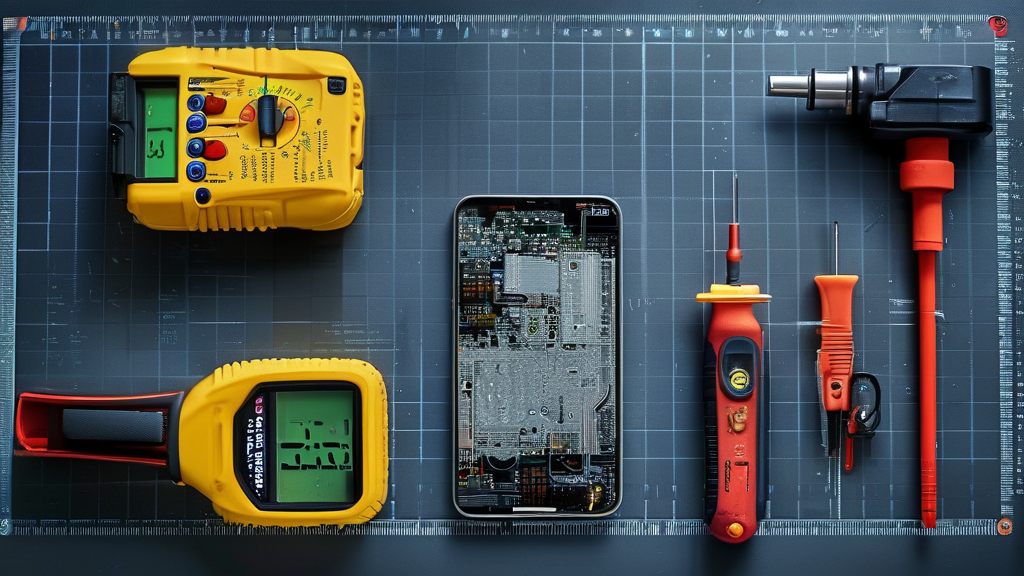
Using diagnostic software for touch unresponsiveness checks
When the aftermarket screen error message ios 17/ios 18 compatibility warning appears alongside touch lag, start with diagnostic software built for iOS 17 and iOS 18.
-
Run software diagnostics to log dead zones
-
Check touch sensitivity drift after screen calibration
-
Compare baseline touch maps before and after replacement
Then go deeper:
-
Connect the device to certified tools.
-
Initiate full-panel scan.
-
Record digitizer grid response.
-
Recalibrate and retest.
If the aftermarket screen error message ios 17/ios 18 compatibility alert persists after calibration, the issue may not be firmware—it’s often hardware-level touch instability.
A quick workflow many techs follow:
-
Launch diagnostic software
-
Review live touch plotting
-
Spot inconsistent pressure nodes
-
Cross-check with calibration logs
-
-
Short takeaways:
Touch drops in corners? Likely digitizer mapping.
Ghost touch? Possible grounding issue.
No response at all? Flex signal interruption.
For reliable part pairing that minimizes aftermarket screen error message ios 17/ios 18 compatibility risks, many repair shops source assemblies from Screen Stocks, known for tighter quality screening.
Continuity test to isolate flex cable and digitizer faults
Touch failure with an aftermarket screen error message ios 17/ios 18 compatibility notification often traces back to the flex cable or digitizer.
Use a continuity test to confirm electrical connection health and signal integrity.
• Disconnect battery
• Access display connector
• Probe line-by-line
Follow this nested isolation path:
-
Begin component testing
-
Test main display flex
-
If no tone → broken trace
-
If intermittent tone → micro-tear
-
-
Test digitizer circuit
-
Stable reading → move upstream
-
No reading → replace panel
-
-
Solid continuity but still seeing the aftermarket screen compatibility error on iOS 17 or iOS 18? That hints at authentication mismatch, not pure hardware damage.
Testing jig analysis for brightness reduction and functionality issues
Dim output paired with the aftermarket screen error message ios 17/ios 18 compatibility complaint usually involves panel communication limits.
A testing jig recreates stable power supply and system load conditions to evaluate:
-
Brightness reduction under max output
-
Color uniformity and screen output
-
Overall display performance
Process flow:
-
Mount display into jig.
-
Simulate peak brightness draw.
-
Monitor voltage behavior.
-
Compare to OEM reference curve.
If functionality issues appear only under stress, suspect sub-par driver IC integration.
Shops working with Screen Stocks often report fewer brightness caps tied to iOS 17 and iOS 18 compatibility warnings, reducing repeat repairs and that frustrating aftermarket screen error message loop customers hate.
4 Troubleshooting Steps for iOS 17/18 Screen Compatibility
iOS updates hit hard when your phone suddenly throws an aftermarket screen error message ios 17/ios 18 compatibility warning. If your device feels glitchy after a repair, don’t panic. These four fixes walk through real-world ways to calm that error and get your screen behaving again.
Firmware rollback to resolve non-genuine display alerts
When an aftermarket screen error message ios 17/ios 18 compatibility alert appears after updating to iOS 17 or iOS 18, the system’s tighter part authentication is often the trigger. A controlled firmware rollback may temporarily soften strict pairing rules tied to a non-genuine display or aftermarket screen.
-
Confirm current iOS build in settings.
-
Back up all data locally.
-
Install signed earlier firmware via recovery mode.
-
Reboot and monitor the error message frequency.
Key checks before rollback:
-
Battery health above 50%
-
Stable Wi‑Fi connection
-
Verified IPSW file source
If the aftermarket screen error message ios 17/ios 18 compatibility warning fades after rollback, the issue likely links to system-level display authentication rather than hardware failure.
Flex cable reseating to tackle touch unresponsiveness
Touch acting weird? A loose flex cable can fake a serious screen issue. Reseating improves the display connection between panel and board.
Inside the device:
-
Disconnect battery.
-
Inspect flex cable pins for dust or tilt.
-
Reconnect with even pressure.
Common signs tied to aftermarket screen error message ios 17/ios 18 compatibility cases:
• Ghost touches
• Partial dead zones
• Random brightness flicker
Repair shops following a proper repair guide often fix both touch unresponsiveness and system alerts in one go. Many technicians sourcing parts from Screen Stocks report fewer repeat compatibility complaints because part quality matches tighter iOS compatibility checks.
Logic board analysis for component mismatch diagnosis
Persistent aftermarket screen error message ios 17/ios 18 compatibility alerts can stem from logic board authentication linked to the display controller. Here’s how mismatch patterns typically show up:
-
Software layer
-
iOS update triggers pairing check
-
Serial mismatch logged
-
-
Hardware layer
-
Non-paired EEPROM data
-
Inconsistent voltage readings
-
-
Board-level scan
-
Check display lines
-
Validate authentication chip
-
Diagnostic comparison table:
| Test Item | Normal Range | Mismatch Indicator | Related Hardware Issue | iOS Update Impact |
|---|---|---|---|---|
| Display ID Read | Verified serial | Null response | Faulty display controller | High |
| Voltage Line | 4.8–5.2V | Below 4.5V | Connector instability | Medium |
| EEPROM Data | Synced | Unpaired | Aftermarket parts | High |
| Touch IC Signal | Stable | Intermittent | Flex damage | Medium |
| Brightness Sensor | Responsive | Delayed | Calibration fault | Low |
Accurate diagnosis prevents unnecessary part swaps. Screen Stocks supplies assemblies tested for tighter board pairing tolerance, reducing repeat aftermarket screen error message ios 17/ios 18 compatibility incidents after an iOS update.
Calibration tool alignment to restore brightness consistency
A misaligned calibration tool can leave brightness uneven even if the aftermarket screen error message ios 17/ios 18 compatibility alert disappears. Proper display calibration restores brightness consistency and color accuracy.
Follow this flow:
-
Enter diagnostic mode.
-
Connect approved calibration tool.
-
Run luminance sync.
-
Validate screen settings under different light levels.
Quick results you should see:
-
Even white balance
-
Stable auto-brightness
-
Improved visual performance
When calibration aligns correctly with iOS 17/18, the device feels normal again—no random dimming, no strange tint. Pairing quality parts from Screen Stocks with precise calibration closes the loop on most aftermarket screen error message ios 17/ios 18 compatibility complaints.
OEM vs Aftermarket Displays: Compatibility and Quality Control
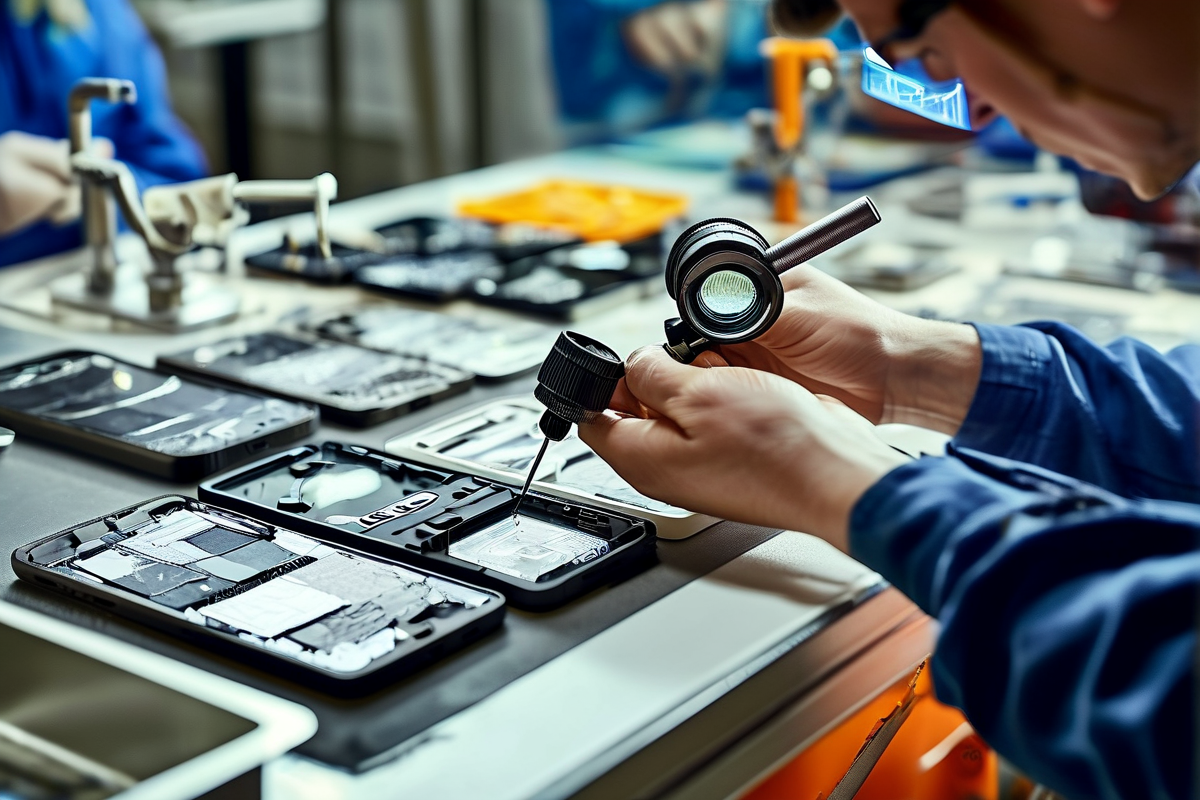
Phone repairs sound simple until an aftermarket screen error message ios 17/ios 18 compatibility alert pops up and ruins the mood. This cluster breaks down why that happens, how OEM display modules avoid it, and what makes some aftermarket display units risky business.
OEM display
An OEM display from the original equipment manufacturer follows strict performance standards and factory rules. That’s not marketing fluff—it’s baked into the hardware.
-
Built under verified factory calibration
-
Tested for hardware compatibility
-
Synced with integrated software
-
Device authentication handshake
-
Secure chip pairing
-
System-level display verification
When installed correctly, an OEM display panel moves through a layered validation path:
-
Hardware Layer
-
Matched serial data
-
Encrypted board pairing
-
-
Software Layer
-
iOS 17 firmware sync
-
iOS 18 display driver alignment
-
-
System Response
-
No aftermarket screen error message ios 17/ios 18 compatibility alert
-
No “unknown part” notification
-
That’s why users rarely see an aftermarket screen error message ios 17/ios 18 compatibility warning after OEM replacement. The phone just works.
Counterpoint Research noted in a 2025 repair market brief that tighter device-part authentication in newer iOS versions is directly tied to higher OEM retention rates in certified repair channels.
For repair shops sourcing through Screen Stocks, the benefit is simple: fewer callbacks, cleaner installs, and stable display quality across updates. No sudden aftermarket screen error message ios 17/ios 18 compatibility drama after a routine software push.
Aftermarket display
An aftermarket display, often a third-party replacement, can look fine at first glance. Bright screen. Smooth touch. Then iOS updates roll in.
Common risks:
-
Mismatched firmware
-
Reduced device integration
-
Random error messages
★ After update to iOS 17 or iOS 18, the aftermarket screen error message ios 17/ios 18 compatibility alert may appear.
Here’s how issues typically unfold:
-
Installation Phase
-
Non-matching chip ID
-
No encrypted pairing
-
-
Update Phase
-
Software checks part origin
-
Flags non-OEM hardware
-
-
User Experience
-
aftermarket screen error message ios 17/ios 18 compatibility notice
-
Limited screen functionality
-
Persistent warnings in settings
-
Short version? Lower-grade panels skip full integrated software syncing. That’s when screen functionality glitches show up.
Repair pros working with Screen Stocks reduce exposure to these risks by choosing graded, tested stock instead of random supply. It doesn’t erase every aftermarket screen error message ios 17/ios 18 compatibility case, but it seriously cuts down the odds—and protects overall user experience.
Preventing Future iOS Compatibility Conflicts in Aftermarket Screens
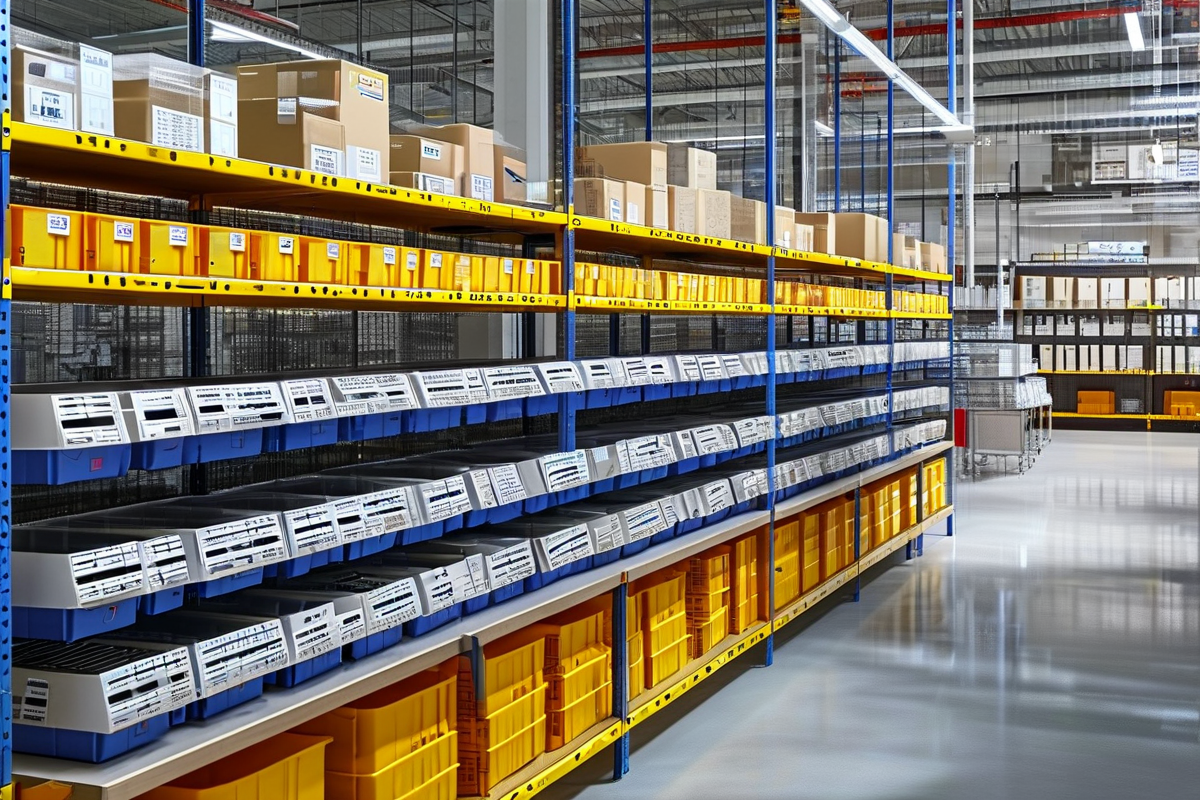
iOS updates move fast, and repair shops often feel the heat when an aftermarket screen error message ios 17/ios 18 compatibility alert pops up out of nowhere. Avoiding that headache takes planning, testing, and tight coordination behind the scenes.
Building a robust supplier network for genuine part sourcing
A stable supplier network keeps your workflow smooth and lowers the odds of triggering an aftermarket screen error message ios 17/ios 18 compatibility warning after installation.
-
Verify component authenticity through documented supplier vetting
-
Audit the supply chain for traceable genuine parts
-
Standardize part sourcing agreements with firmware transparency
-
Map every supplier to specific device models and iOS builds.
-
Cross-check screen controller versions against iOS 17 and iOS 18 updates.
-
Require pre-shipment compatibility confirmation.
When a new batch arrives, break the review into layers:
-
Supplier level
-
Business license validation
-
Production capability check
-
-
Component level
-
Screen IC origin
-
Firmware revision labeling
-
-
Logistics level
-
Batch tracking codes
-
Damage inspection on arrival
-
Shops that tighten part sourcing processes report fewer “unknown display” alerts and fewer cases tied to aftermarket screen iOS 17 compatibility problems. Fewer surprises. Fewer awkward customer callbacks.
Implementing quality control via rigorous product testing
Loose testing is where most aftermarket screen iOS 18 compatibility issues sneak in. Solid quality control and rigorous testing catch them early.
Testing should include:
-
Performance validation under brightness stress
-
Touch latency measurement
-
True Tone and Face ID interaction checks
Then go deeper:
-
Run compatibility checks on devices updated to the latest iOS build.
-
Monitor for recurring aftermarket screen error message ios 17/ios 18 compatibility alerts.
-
Log anomalies for defect detection review.
“Post-repair device reliability is increasingly tied to component-level validation and firmware alignment,” noted a 2025 consumer electronics service report by IDC, highlighting rising return rates linked to incompatible third-party parts.
Layered testing reduces the chance of aftermarket display error messages and strengthens trust at the counter.
Establishing inventory management protocols to avoid component mismatch
Smart inventory management prevents costly component mismatch mistakes that trigger the dreaded aftermarket screen error message ios 17/ios 18 compatibility notice.
Keep it tight:
-
Clear part identification labels
-
Accurate version tracking for each batch
-
Structured stock control rotation
Organize inventory in nested levels:
-
Device category
-
iPhone model
-
iOS-supported firmware range
-
Screen assembly revision code
-
-
Add a quick verification ritual before installation:
-
Scan barcode for firmware data.
-
Match revision to device iOS version.
-
Confirm compatibility log entry.
Small discipline shifts stop big repair drama. With solid protocol establishment, fewer screens clash with iOS 17 or iOS 18, and the aftermarket screen iOS compatibility conversation becomes a lot less stressful for everyone involved.
If you are sourcing replacements, check the iPhone screen category and the shop for current options that are easier to match with iOS 17 and iOS 18 repair workflows.







Recent Comments