



replacement OLED screen flickering at low brightness shows up after a install, turning a quick win into a callback headache. Customers notice it instantly, and your credibility takes the hit.
For parts buyers and repair shops, Screen Stocks keeps a screen replacement catalog and a practical OLED vs LCD guide that help narrow down whether the problem is the panel, the driver, or the installation.
Counterpoint Research and IDC report rising returns linked to aftermarket display inconsistencies, with service channels flagging quality variance as a primary cause of post-repair complaints.
Fixing it means precise diagnosis and sourcing screens that behave under dim settings, not just quick tests.
Key Points: replacement OLED screen flickering at low brightness
→ Identify PWM and pixel response delays at dim settings to pinpoint flicker sources.
→ Inspect display connectors and flex cables for secure seating and continuity breaks.
→ Measure PWM frequency and recalibrate gamma to stabilize luminance and reduce artifacts.
→ Use OEM-grade or certified aftermarket screens and enforce QC in sourcing and installation.
Understanding OLED Flickering at Low Brightness
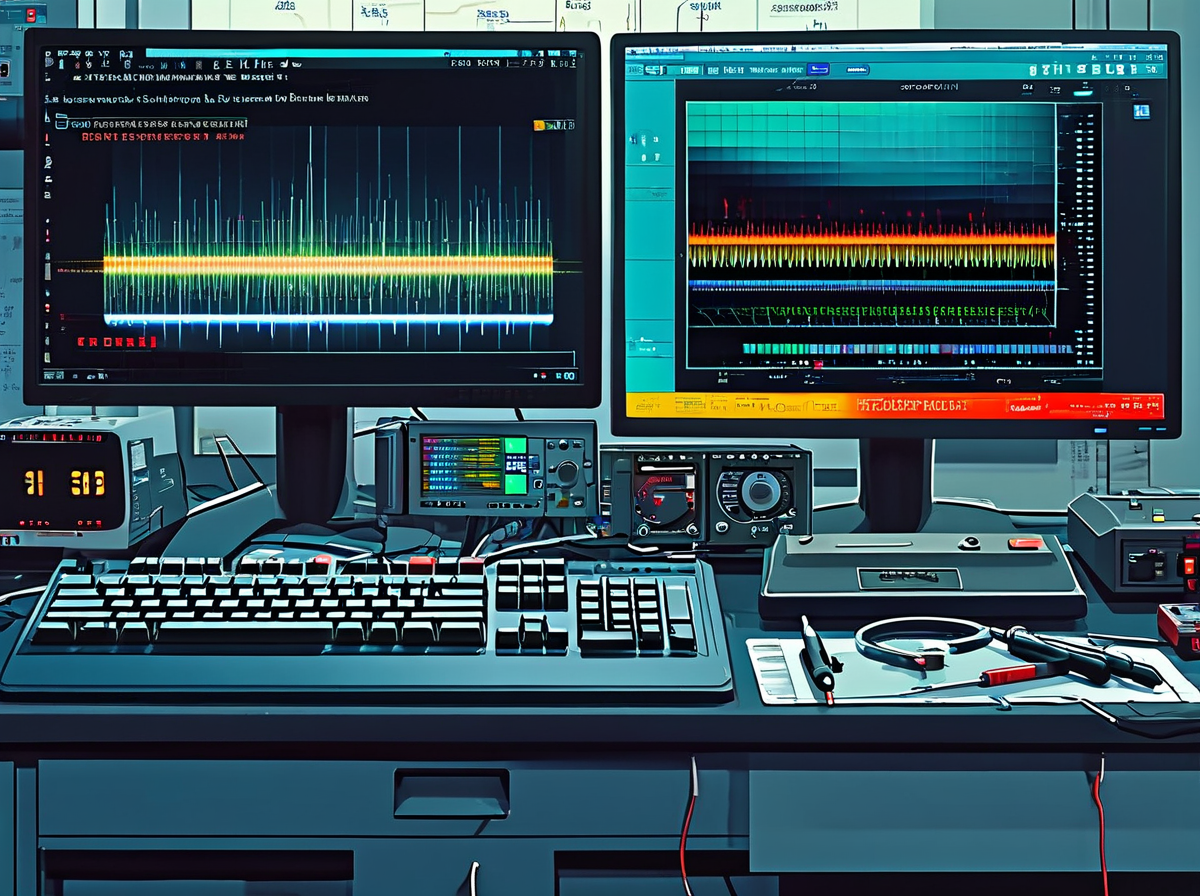
When you notice a replacement OLED screen flickering at low brightness, it can feel super annoying—especially at night when the display should look calm and steady. This issue often ties back to how brightness is controlled, how pixels react, and how uniform the panel really is. Let’s break down why replacement OLED screen flickering at low brightness happens and what’s going on behind that unstable glow.
What is PWM and how it triggers a flickering display?
A replacement OLED screen flickering at low brightness is commonly linked to Pulse Width Modulation.
At reduced Brightness control, OLED panels don’t always dim smoothly. Instead:
-
The screen rapidly switches on and off.
-
The Duty cycle shortens to lower light output.
-
A low Refresh rate can amplify the Flicker effect.
Here’s how it unfolds:
-
Brightness drops.
-
The panel relies more heavily on Pulse Width Modulation.
-
Shorter light pulses create visible Perceived flicker.
-
Sensitive eyes catch the flashing.
In a stable panel:
-
Higher PWM frequency
-
Balanced duty cycle
-
Optimized refresh timing
In a weaker or budget replacement OLED screen flickering at low brightness case:
-
Lower frequency
-
Inconsistent pulse rhythm
-
Noticeable shimmer in dark mode
Some users switching to parts supplied by Screen Stocks report improved flicker control because frequency calibration matters a lot in real-world use.
Pixel response time vs low brightness issue
Not all flicker is PWM-driven. Sometimes it’s about Pixel response behavior under Low brightness.
When light output drops:
-
Transition time slows.
-
Minor voltage shifts lag.
-
Image persistence becomes visible.
In practical terms:
-
OLED pixels receive weaker current.
-
Response speed declines.
-
Tiny luminance gaps appear.
-
The eye reads it as motion instability.
With aging panels or inconsistent OLED technology calibration, you might notice:
-
Slight trailing in dark scenes
-
Momentary blur during scroll
-
Subtle Visual artifacts
A poorly tuned replacement can worsen this, making a replacement OLED screen flickering at low brightness feel like ghosting rather than flashing.
Uneven illumination: exploring intermittent display artifacts
Sometimes the issue isn’t flicker rhythm—it’s Uneven brightness.
When a screen shows patchy glow, think in layers:
-
Pixel layer
-
Variations in organic material
-
Inconsistent voltage spread
-
-
Panel assembly
-
Minor Panel variation
-
Connector instability
-
-
Surface output
-
Localized Screen artifacts
-
Subtle dark bands
-
Warning signs include:
-
Random dim spots
-
Mild Intermittent issues during dim use
-
Edge glow resembling Backlight bleed (even though OLED has no traditional backlight)
High-quality suppliers like Screen Stocks focus on tighter Display uniformity, reducing the odds of a replacement OLED screen flickering at low brightness turning into a daily headache.
When brightness drops, weaknesses show. That’s just how OLED behaves.
Identifying Component-Related Causes
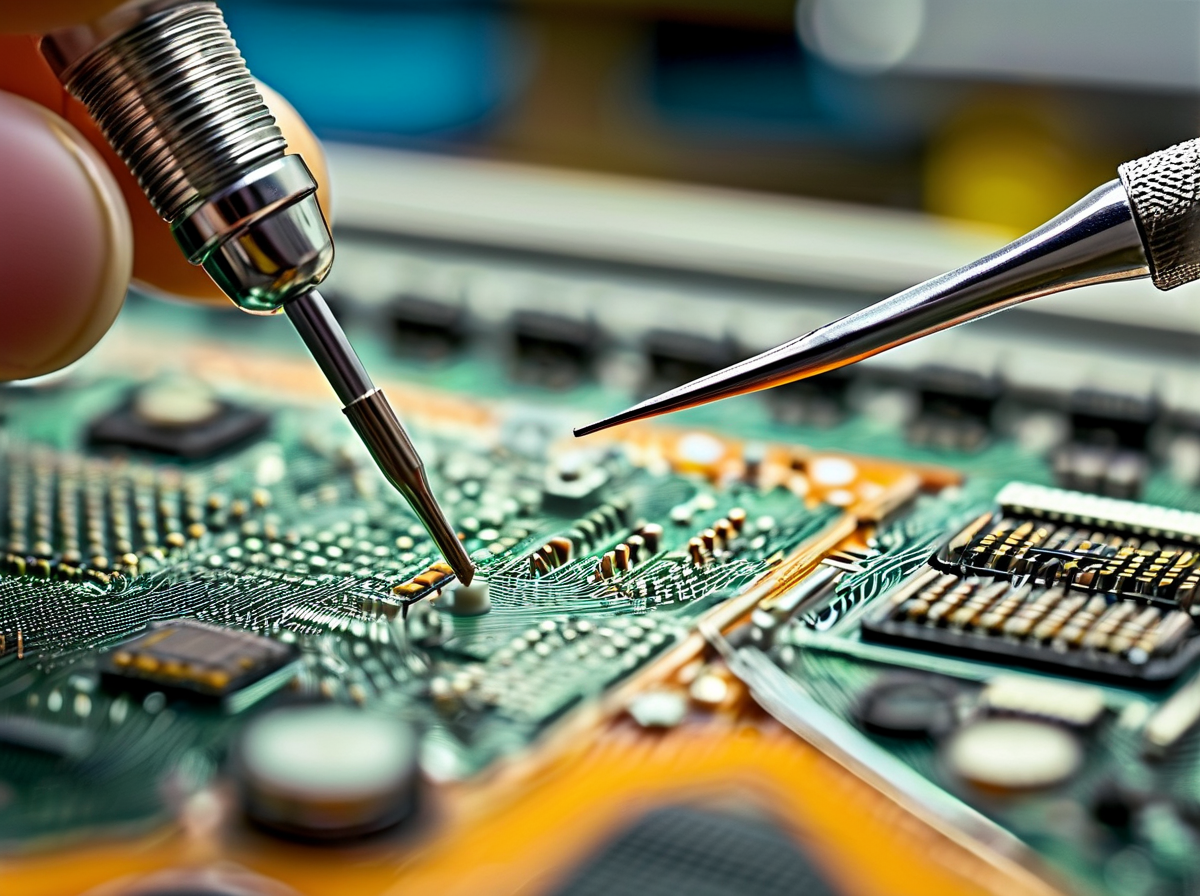
When a replacement OLED screen flickering at low brightness starts driving you crazy, the root cause often hides inside the hardware. From a loose display connector to deeper power management trouble, each component plays its own role in low brightness screen flicker issues.
Loose connection in the display connector
A replacement OLED screen flickering at low brightness can trace back to a shaky display connector or poorly seated flex cable. Small movement, big headache.
-
Common trouble spots:
-
Ribbon cable not fully locked into the socket
-
Dust at the connection point
-
Slight bend in the internal connection
-
-
Power off device.
-
Open handset carefully.
-
Inspect cable alignment.
-
Re-seat the flex cable firmly.
When voltage signals fail to pass cleanly through the display connector, the screen may dim unevenly or flicker at low brightness. Many repair pros sourcing parts from Screen Stocks double-check connector fit before blaming the panel itself.
Defective display driver IC vs digitizer panel faults
If the replacement OLED screen flickering at low brightness continues, look deeper:
-
Display driver IC
-
Controls refresh rate
-
Manages luminance
-
-
Digitizer panel
-
Handles touch input
-
Linked to surface sensing
-
A faulty display driver IC disrupts brightness control, creating low brightness flicker even when touch works fine. A bad digitizer panel, on the other hand, mainly affects touch but may signal broader screen malfunction.
Spotting the difference saves time, money, and repeat repairs tied to a replacement OLED screen flickering at low brightness.
Manufacturing defect in replacement OLED display assembly
Not every new OLED display assembly is flawless.
-
Possible manufacturing defect:
-
Uneven pixel bonding
-
Poor quality control
If you are comparing suppliers, the brightness and color-quality guide is a useful checkpoint before you buy another batch.
-
Hidden panel defect
-
Low-grade parts can trigger a replacement OLED screen flickering at low brightness within weeks. Choosing a vetted display unit from suppliers like Screen Stocks lowers the odds of assembly issues. A solid new screen should maintain stable illumination even at minimum brightness.
Power management issue within the mobile handset
When hardware checks out, shift focus to power management inside the mobile handset.
• Inconsistent battery voltage
• Weak voltage regulation
• Damaged circuitry
The flow often looks like this:
-
Power supply fluctuates.
-
OLED receives unstable current.
-
Brightness dips.
-
Replacement OLED screen flickering at low brightness appears again.
A failing device power system doesn’t just dim the screen; it creates repeated brightness swings. If multiple replacement OLED screen flickering at low brightness cases show up on the same model, technicians often inspect the power rail before swapping another panel from Screen Stocks.
Step-by-Step Troubleshooting with Essential Tools
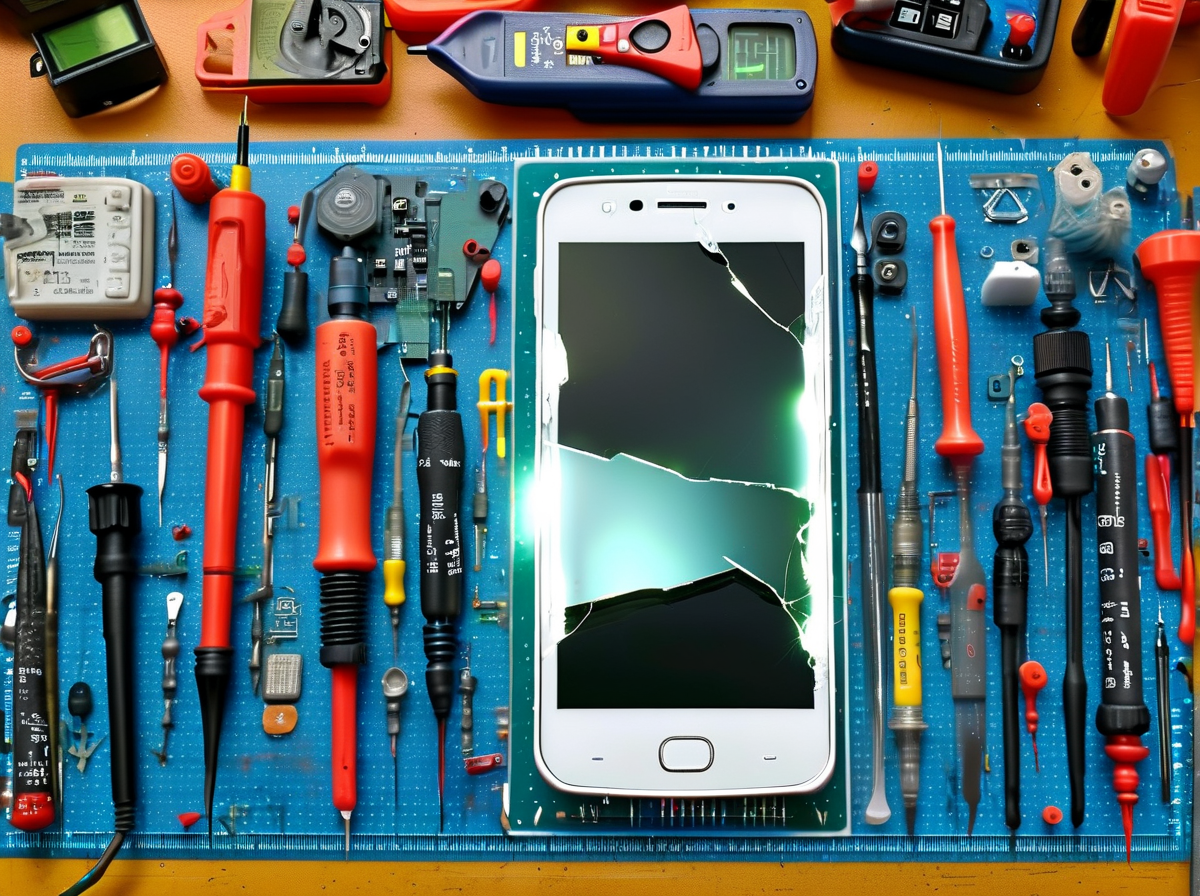
A replacement OLED screen flickering at low brightness can drive anyone crazy. The issue usually ties back to the display connector, flex cable, or unstable PWM frequency. When a replacement OLED screen flickering at low brightness keeps acting up, you need steady hands, the right tools, and a clear checklist. Let’s break it down in a practical way.
Step 1: Checking display connector integrity
A loose display connector is often the hidden villain behind a replacement OLED screen flickering at low brightness.
-
Remove the back cover carefully
-
Disconnect the battery before touching the flex cable
-
Inspect the connector under bright light
-
Check alignment of the display connector
-
Confirm no dust blocks the contact points
-
Reseat the flex cable firmly
When working on a replacement OLED screen flickering at low brightness, follow this path:
-
Device teardown
-
◦ Place parts on an anti-static mat
-
◦ Use a spudger to lift the shield
-
-
Connector review
-
◦ Inspect connector pins for bending
-
◦ Clean gently if oxidation appears
-
-
Reassembly
-
◦ Lock the flex cable evenly
-
◦ Power on for a quick visual inspection
-
Small misalignment. Big headache. A stable connection fixes many flicker issues fast.
Testing flex cable continuity with a multimeter
If reseating doesn’t help, grab a multimeter.
Start with a continuity test on the flex cable.
Short beeps mean intact pathways. Silence suggests broken traces affecting electrical connection.
Follow this sequence:
-
Power fully off
-
Disconnect the flex cable
-
Set the multimeter to continuity mode
-
Probe both ends of each trace
-
Note irregular readings
Inside this process:
-
Cable integrity check
-
◦ Test ground lines
-
◦ Test signal lines
-
-
If failure appears
-
◦ Replace damaged cable
-
◦ Recheck for replacement OLED screen flickering at low brightness
-
Quick tests save hours. No guesswork, just clean signal measurement.
Visual examination on an anti-static mat
Place everything on an anti-static mat. Static damage is sneaky.
Look closely at:
-
Burn marks on the OLED panel
-
Scratched contact pads
-
Bent connector pins
A slow visual examination often reveals subtle cable damage. Surface inspection should move in stages:
-
Screen edge
- ◦ Frame pressure points
-
Connector area
-
◦ Pin spacing
-
◦ Solder stability
-
Short pauses help. Step back. Look again. Many replacement OLED screen flickering at low brightness complaints trace back to rushed installation.
Measuring PWM frequency to diagnose screen instability
Brightness dips can expose weak PWM frequency control. That’s when screen instability shows up as flickering.
Use an oscilloscope for accurate signal measurement:
-
Connect probe to the display driver output
-
Lower brightness gradually
-
Observe waveform consistency
Inside this diagnostic path:
-
PWM analysis
-
◦ Stable waveform → likely hardware intact
-
◦ Irregular waveform → possible display driver issue
-
-
Cross-check
- ◦ Compare readings with manufacturer specs
Industry data supports this focus on flicker behavior:
If the replacement OLED screen flickering at low brightness persists even with proper PWM frequency, panel quality becomes suspect. That’s why many repair pros rely on parts from Screen Stocks, known for consistent display driver calibration and reduced flickering at low brightness.
Calibrating gamma correction after component testing
After hardware checks, fine-tune gamma correction.
Do this carefully:
-
Enter advanced display settings
-
Adjust brightness levels step by step
-
Verify color calibration against a neutral test image
Nested calibration flow:
-
Base adjustment
- ◦ Reset to factory gamma
-
Fine correction
-
◦ Slightly raise mid-tone response
-
◦ Confirm stable luminance
-
-
Final validation
-
◦ Check dark gray screens
-
◦ Monitor for screen instability
-
Proper gamma correction improves color accuracy and smooth transitions at low brightness. A good panel from Screen Stocks paired with careful calibration usually eliminates replacement OLED screen flickering at low brightness for good.
No magic tricks. Just clean diagnostics, steady testing, and smart part choices.
Repair Procedures and Best Practices

Mobile tech can be tricky, especially when dealing with a replacement OLED screen flickering at low brightness. From safe teardown to software tweaks and material choices, small details decide whether the repair lasts or drives you crazy later.
Disassembly tips using ESD safe tools
When facing a replacement OLED screen flickering at low brightness, safe teardown protects the new display panel from hidden damage.
-
Wear an ESD wrist strap
-
Work on an Anti-static mat
-
Keep a Plastic spudger instead of metal tools
-
Power off the device.
-
Warm edges gently with a Heat gun.
-
Lift glass using a Suction cup.
-
Disconnect battery before touching display connectors.
For precise internal handling:
-
Connector area
-
Use Precision tweezers
-
Avoid scraping shielding
-
-
Display module
-
Separate adhesive slowly
-
Protect the Flex cable
-
Skipping ESD steps can cause micro surges that later show up as OLED flicker at low brightness. Screen Stocks always recommends controlled environments for consistent repair outcomes.
Software incompatibility fixes for screen replacement
A replacement OLED screen flickering at low brightness isn’t always hardware.
Start simple:
-
Run a Compatibility check
-
Perform a System reset
Then go deeper:
-
Install pending Firmware update
-
Complete required Driver installation
-
Use a Calibration tool to rebalance brightness curves
-
Scan with Diagnostic software
If flickering after screen replacement persists, nested troubleshooting helps:
-
Software layer
-
Update OS
-
Reboot twice
-
-
Display settings
-
Recalibrate brightness
-
Disable adaptive tone temporarily
-
Many cases of OLED screen flicker at low brightness clear up here. Screen Stocks supports firmware-matched components to reduce these headaches.
OEM quality vs aftermarket grade repair materials
Not all parts behave the same.
• Display panel quality impacts Color accuracy
• Poor Adhesive strips cause lift and pressure spots
• Weak Flex cable design reduces Durability
OEM-grade parts usually maintain stable Brightness levels and smoother dimming. Aftermarket options can work, but uneven illumination and touch lag from a lower-tier Touch digitizer often trigger replacement OLED screen flickering at low brightness symptoms.
Screen Stocks prioritizes carefully tested parts so that screen flickering at low brightness doesn’t become a repeat visit.
Installation procedure: ensuring a secure flex cable fit
Connection issues are sneaky.
-
Check Cleanliness before seating. Dust blocks contact.
-
Confirm Connector alignment visually.
-
Apply Gentle pressure until proper Cable seating is felt.
-
Engage the Locking mechanism fully.
-
Add light Strain relief before sealing.
-
Finish by Testing connection at multiple brightness levels.
A loose fit easily mimics replacement OLED screen flickering at low brightness. Tight, clean, and properly aligned connections make the fix stick.
Preventing Future Flickering Through Quality Management
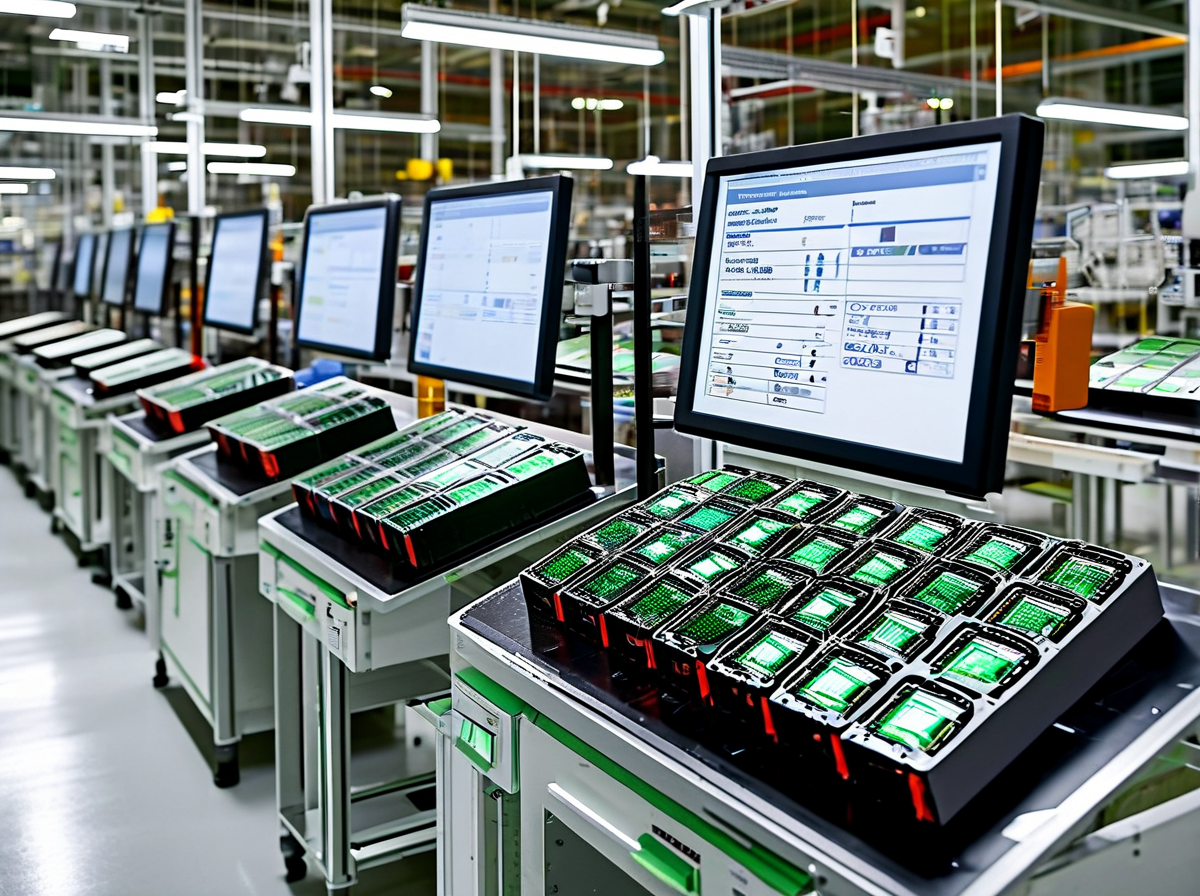
Low brightness issues can drive anyone crazy. When a replacement OLED screen flickering at low brightness keeps coming back, the root cause often traces to supply chain quality. Managing sourcing, procurement, and distribution properly reduces OLED display flicker, stabilizes dim-light performance, and protects repair credibility.
Sourcing from certified components suppliers
When tackling replacement OLED screen flickering at low brightness, quality starts upstream.
-
✅ Verified supplier certification
-
✅ Documented component verification
-
✅ Transparent material sourcing
-
Screen panel validation
-
Driver IC stability checks
-
Brightness calibration screening
At a deeper level:
-
Supplier Qualification
-
Audit history
-
Compliance documentation
-
On-site supplier audits
-
-
Component Validation
-
Electrical testing
-
Aging simulation
-
Low-brightness flicker monitoring
-
A weak vendor reliability process often leads to OLED screen flicker under dim settings. That’s why Screen Stocks works only with audited partners, reducing the risk of another replacement OLED screen flickering at low brightness complaint landing on your desk.
Bulk purchasing strategies for high-quality replacement screens
Buying small batches from random sellers? That’s where screen flicker sneaks in.
• Stable bulk procurement contracts
• Locked-in quality standards
• Long-term supplier partnerships
Here’s a smart flow:
-
Define screen quality assurance benchmarks
-
Secure long-term supply agreements
-
Perform periodic lot sampling
-
Procurement Control
-
Batch trace coding
-
Uniform brightness testing
-
Dead-pixel filtering
-
-
Inventory Stability
-
Controlled storage
-
Moisture management
-
Damage checks
-
Consistent sourcing cuts variation, which means fewer cases of replacement OLED screen flickering at low brightness and fewer returns. Screen Stocks applies strict screen quality assurance before bulk shipment, helping repair shops avoid dim display flickering surprises.
Implementing quality control in distribution channels
Even a perfect screen can fail if the distribution network is sloppy.
Quality control in motion includes:
-
➤ Incoming inspection checkpoints
-
➤ Protective handling procedures
-
➤ Serialized traceability
Multi-level oversight works best:
-
Logistics Management
-
Shock-resistant packaging
-
Temperature tracking
-
-
Product Integrity
-
Random brightness audits
-
Flicker retesting under 10–20% luminance
-
-
Damage Prevention
-
Staff training
-
Controlled warehouse stacking
-
Short checks. Tight tracking. Clear accountability.
This layered approach stops fragile OLED assemblies from degrading before installation. And when distribution stays disciplined, cases of replacement OLED screen flickering at low brightness drop fast—protecting both technicians and customers from repeat low-brightness screen flicker headaches.






Recent Comments