


It’s not the glass; data mismatch knocks out True Tone and trust.
Apple Support displays are paired to iOS; unmatched parts trigger system messages.
Understanding the Important Display Message on iPhone 13/14
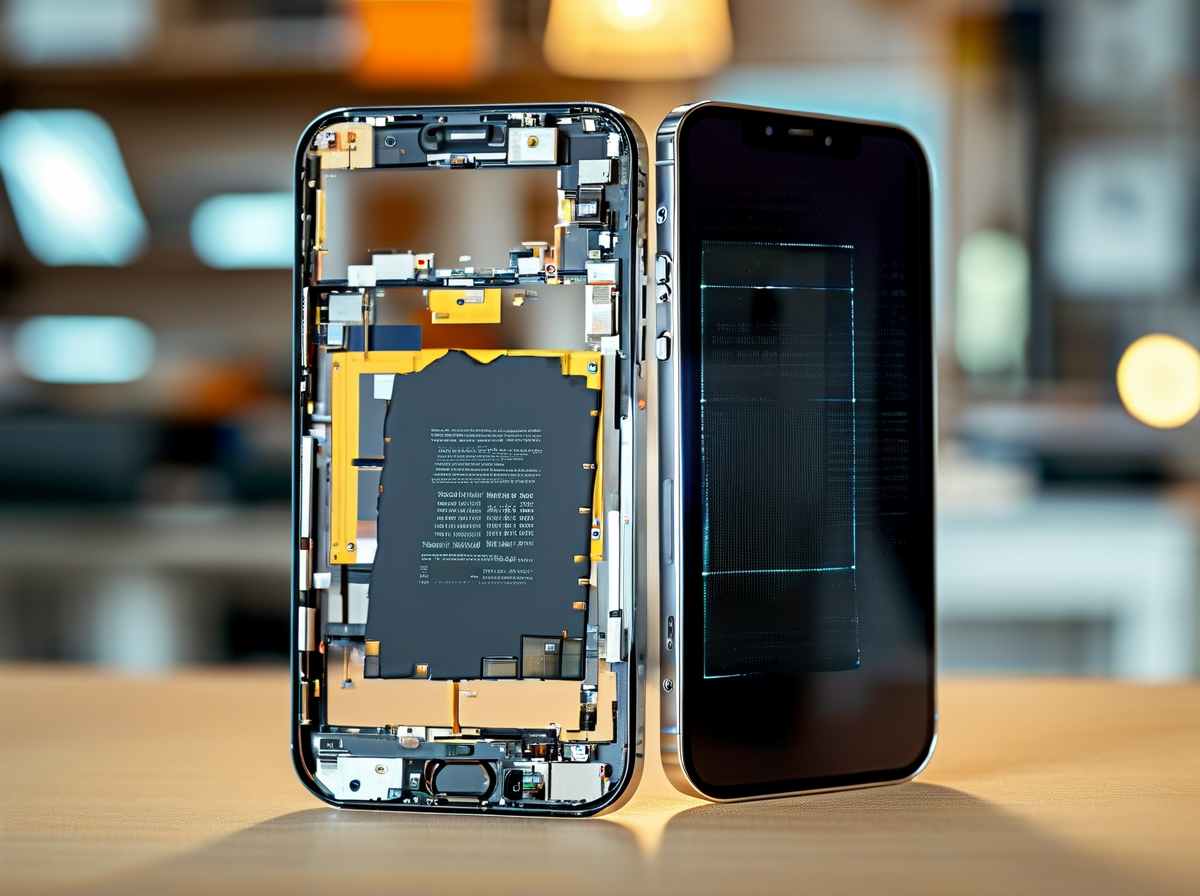
If you’re stuck wondering how to remove important display message iPhone 13/14, you’re not alone. This alert pops up after a screen replacement, and it can feel annoying. Let’s break it down in plain terms and figure out what’s really happening.
What Is the Important Display Message?
The display message on iPhone 13 and iPhone 14 appears when iOS detects a mismatch between the screen’s serial data and the logic board. In simple words, the phone can’t verify if the genuine display is still installed.
When people search how to remove important display message iPhone 13/14, they’re usually dealing with:
-
A recent screen replacement
-
Installation of a non-genuine part
-
A triggered system alert inside Settings
Here’s how the detection typically works:
-
The display’s EEPROM stores identity data.
-
iOS compares that data during boot.
-
If verification fails, the system alert is logged.
Common scenarios include:
-
✅ Authorized repair without data transfer
-
✅ Aftermarket OLED panel installed
-
✅ Logic board swap without calibration
For those asking how to remove important display message iPhone 13/14, the real fix isn’t just software-based. Professional EEPROM programming or part pairing is required. That’s where suppliers like Screen Stocks matter, because verified panels reduce recurring alerts and improve repair outcomes.
Short answer? The message doesn’t mean the phone is broken. It means the authentication handshake failed.
How Non-genuine Display Alert Differs from System Alert
Not all warnings are equal. A non-genuine alert specifically flags display authenticity. A broader system alert can relate to multiple components.
Here’s the difference inside iPhone settings:
-
Non-genuine alert → focuses on display authenticity
-
System alert → may include battery, camera, or display controller issues
Comparison overview:
| Alert Type | Trigger Source | Appears In Settings | Affects Function | Duration |
|---|---|---|---|---|
| Non-genuine alert | Display serial mismatch | Yes | No immediate block | 15 days on lock screen |
| System alert | Hardware communication issue | Yes | Possible feature limits | Persistent |
| Software-based error message | iOS bug | Sometimes | Rare | After update |
| Post-update notification | Calibration reset | Yes | Temporary | Until recalibration |
| Controller chip fault | Logic board issue | Yes | Possible brightness issue | Persistent |
If you’re still Googling how to remove important display message iPhone 13/14, note this: software updates rarely remove it. Proper part pairing does.
Repair pros often source serialized displays from Screen Stocks to avoid the repeat cycle of notification headaches.
Impact on True Tone Sensor and Ambient Light Sensor
This is where things get practical. The True Tone sensor and ambient light sensor rely on stored calibration values tied to the original display.
Without proper EEPROM transfer:
-
Brightness adjustment feels off.
-
Color accuracy shifts slightly warmer or cooler.
-
Sensor performance becomes inconsistent.
Here’s how it affects daily use:
-
Open a bright outdoor setting → screen may not adapt smoothly.
-
Enter dim lighting → brightness lags.
-
Toggle True Tone → feature missing or disabled.
When people ask how to remove important display message iPhone 13/14, they’re often noticing this loss of display functionality rather than the alert itself.
The solution path usually involves:
-
Professional screen calibration
-
Data transfer from original screen
-
Using a high-quality compatible display
A properly matched panel restores screen calibration, improves brightness adjustment, and stabilizes sensor response.
If your goal is truly to remove important display message iPhone 13/14—not just hide it—authentication and calibration are the real fix.
Why the iPhone Shows the Important Display Message
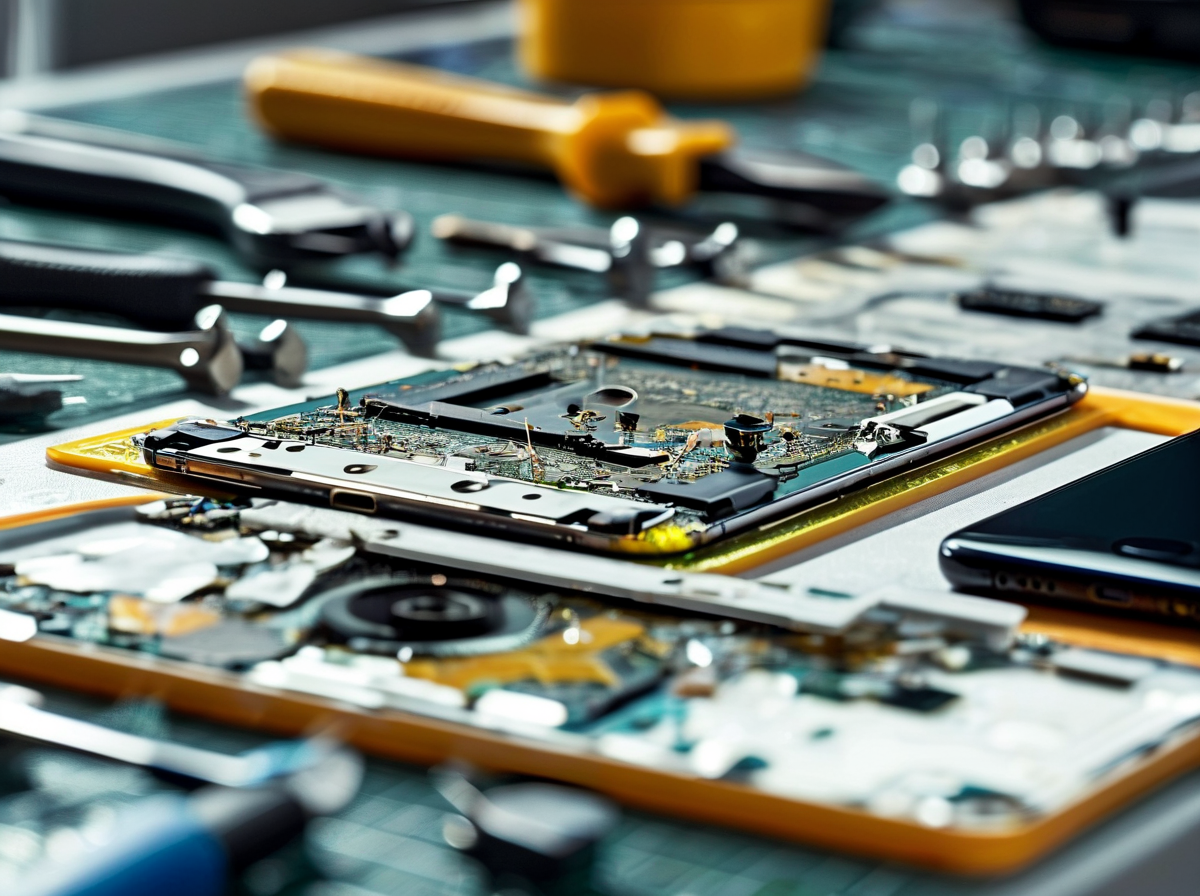
That “Important Display Message” popping up on your iPhone can feel random and annoying. If you’re searching how to remove important display message iPhone 13/14, understanding why it appears is the real starting point.
Broken Flex Cable or Digitizer Causing Service Message?
When your iPhone display throws a service message, it’s often a deeper hardware issue, not just software acting up. A damaged flex cable or faulty digitizer can interrupt the handshake between the screen and logic board.
-
Loose internal connector
-
Torn display flex line
-
Cracked digitizer layer
Here’s how that failure typically unfolds:
-
Impact or improper screen replacement shifts the connector.
-
The flex cable loses stable data transfer.
-
System diagnostics flag inconsistent display ID data.
-
iOS triggers the service message.
Under the hood, the process looks like this:
-
Hardware Communication Check
-
Display ID verification
-
Serial data read
-
Calibration sync
-
-
Touch response monitoring
- Signal integrity scan
-
-
Security Validation
-
EEPROM match
-
Display pairing confirmation
-
If any layer fails, the warning appears.
| Diagnostic Factor | Normal Range | Fault Indicator | System Reaction |
|---|---|---|---|
| Display ID Read | 100% match | Partial data | Flag warning |
| Touch Signal | Stable 3.3V | Voltage drop | Log hardware error |
| EEPROM Sync | Paired | Unrecognized | Trigger message |
| Calibration Data | Present | Missing | Disable True Tone |
| Connector State | Locked | Loose | Intermittent alert |
So before asking how to remove important display message iPhone 13/14, check physical integrity. Many repairs sourced through Screen Stocks reduce repeat alerts because components are pre-tested for board-level compatibility.
If you’re still Googling how to remove important display message iPhone 13/14, start by ruling out cable or digitizer damage.
Aftermarket OLED Display Triggers Part Authenticity Warning
An aftermarket display—even a high-quality OLED screen—may lack Apple’s serialized pairing data. That’s when the part authenticity warning message appears.
Common triggers:
-
Non-matched EEPROM chip
-
Missing factory display calibration profile
-
No original serial for iPhone 13 or iPhone 14
What happens behind the scenes?
-
iOS checks the genuine part database.
-
Serial number comparison fails.
-
System logs “Unknown Display Part.”
-
The alert shows in Settings.
Short version: it’s not always a bad screen. It’s about digital identity.
People searching how to remove important display message iPhone 13/14 or remove important display message on iPhone 14 often assume the screen is defective. In reality, it’s authentication logic.
Choosing verified panels from Screen Stocks lowers the risk of pairing conflicts and helps maintain smoother display calibration behavior. And if you’re still typing how to remove important display message iPhone 13/14 into search, remember—authentic data matching matters as much as glass quality.
Tools and Replacement Parts You Need
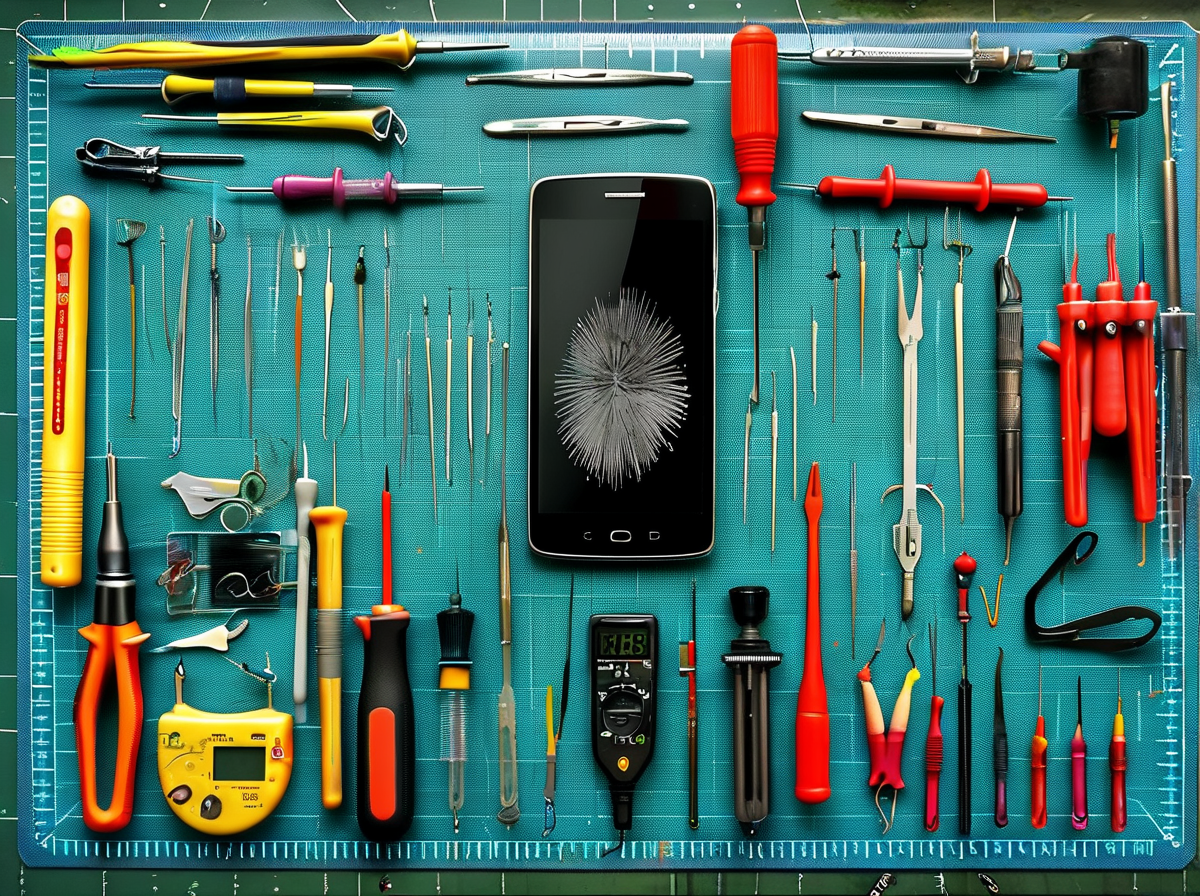
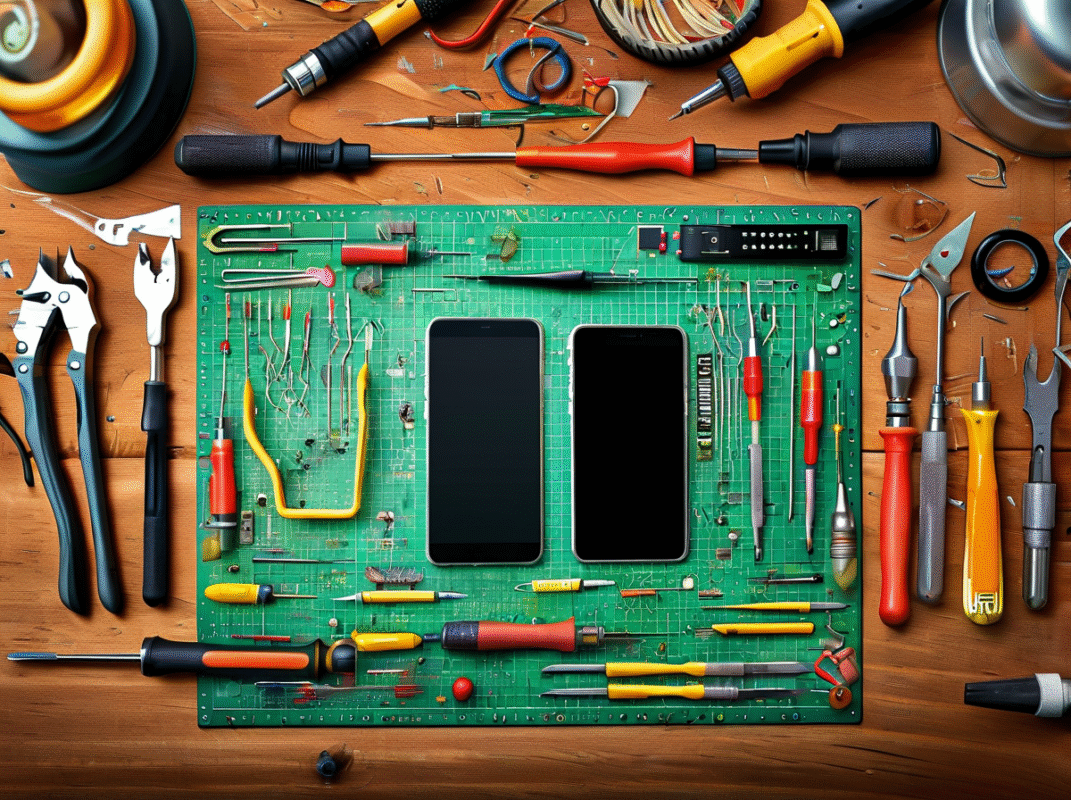
If you’re figuring out how to remove important display message iPhone 13/14, you can’t just wing it. The right tools make the job smooth and prevent extra damage. Below is what actually matters when tackling the important display message iPhone repair.
Screwdriver Set and Spudger Essentials
To handle how to remove important display message iPhone 13/14, start with precision control tools.
-
Core Drivers
-
Pentalobe screwdriver → removes bottom screws on iPhone 13 and 14.
-
Phillips screwdriver → handles internal bracket screws.
-
-
Safe Lifting Tools
-
Spudger
-
Disconnects battery connector
-
Pops display flex cable safely
-
-
Plastic opening tools → reduce short‑circuit risk
-
-
Micro Handling
-
Tweezers
-
Pick up tiny screws
-
Position brackets without slipping
-
-
Without these, trying to fix the important display message iPhone warning becomes messy fast. Slipped screws and torn flex cables ruin any chance of clean serial transfer.
Suction Cup and Pry Tool for Safe Disassembly
Screen separation is where most people mess up when learning how to remove important display message iPhone 13/14.
• Suction cup lifts the screen evenly
• Opening pick slides through adhesive
• Pry tool loosens clips gently
Heat matters too:
-
Warm edges with an iOpener or heat gun
-
Insert pick slowly along frame
-
Avoid proximity and ambient sensor areas
Tiny move. Slow pressure. That’s the rhythm.
Trying to skip heat usually cracks the panel. Then the important display message iPhone issue turns into a full display replacement problem.
Replacement Parts: LCD Panel vs Front Glass
When fixing how to remove important display message iPhone 13/14, part selection changes everything.
There’s a big difference between full Display assembly replacement and glass-only repair.
| Part Type | Compatible Models | Repair Complexity | Equipment Needed |
|---|---|---|---|
| iPhone 13 LCD panel | 13 / 13 mini | Medium | Standard tools |
| iPhone 14 LCD panel | 14 / 14 Plus | Medium | Programmer needed |
| iPhone 13 front glass | 13 series | High | Refurbishing machine |
| iPhone 14 front glass | 14 series | Very High | Lamination setup |
Glass-only jobs demand advanced refurb tools. Most shops skip that unless volume justifies it.
Recent 2025 consumer electronics service data noted:
“Display module replacement remains the dominant smartphone repair category, accounting for over 40% of service revenue globally.”
That lines up with what repair techs see daily.
For stable quality parts that reduce repeat returns, many shops source from Screen Stocks.
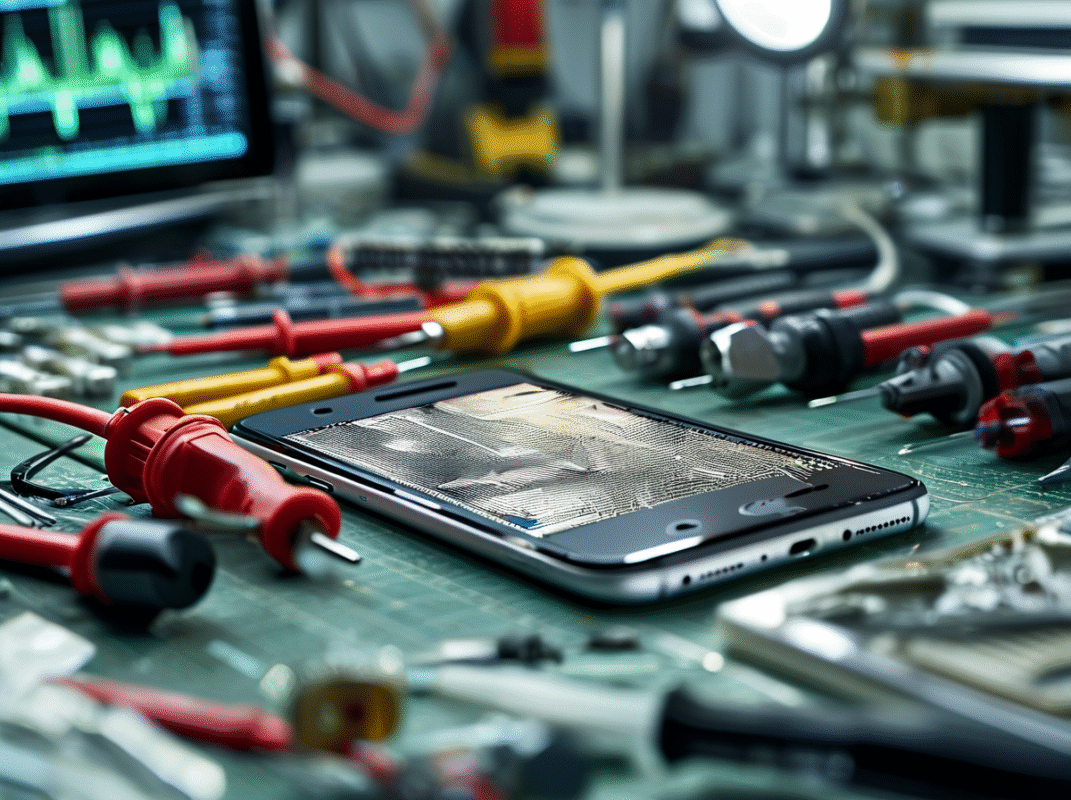
Programmer Device and Microscope for EEPROM Chip Access
Here’s where the real fix happens for the important display message iPhone alert.
To truly understand how to remove important display message iPhone 13/14, EEPROM transfer is key.
-
Equipment Setup
-
EEPROM programmer connected to board
-
Microscope for visual precision
-
-
Chip Access
-
Apply flux
-
Use soldering iron carefully
-
Remove chip with desoldering braid cleanup
-
-
Data Transfer
-
Read original display serial
-
Write data to new panel
-
Verify True Tone activation
-
One wrong heat pass can lift pads. That’s game over for clean repair.
Professional repair shops using calibrated programmer tools—like those paired with parts from Screen Stocks—reduce error rates significantly.
Frame Adhesive and Earpiece Speaker in Inventory
Closing the phone correctly matters just as much as opening it.
For anyone serious about how to remove important display message iPhone 13/14, sealing and part transfer must be precise.
A. Adhesive Control
-
Remove old residue
-
Apply new Frame adhesive strips
-
Align waterproof Waterproof seal
B. Component Transfer
-
Move Earpiece speaker module
-
Protect Face ID flex
-
Avoid tearing mesh
-
C. Hardware Organization
-
Store screws in Small parts tray
-
Use correct Replacement screws for each bracket
Mess up screw placement and you risk board pressure damage.
Clean transfer. Proper seal. Verified serial sync.
That’s how to remove important display message iPhone 13/14 without cutting corners—and why serious repair shops keep reliable inventory partners like Screen Stocks on speed dial.
Step-by-Step Screen Disassembly and Replacement
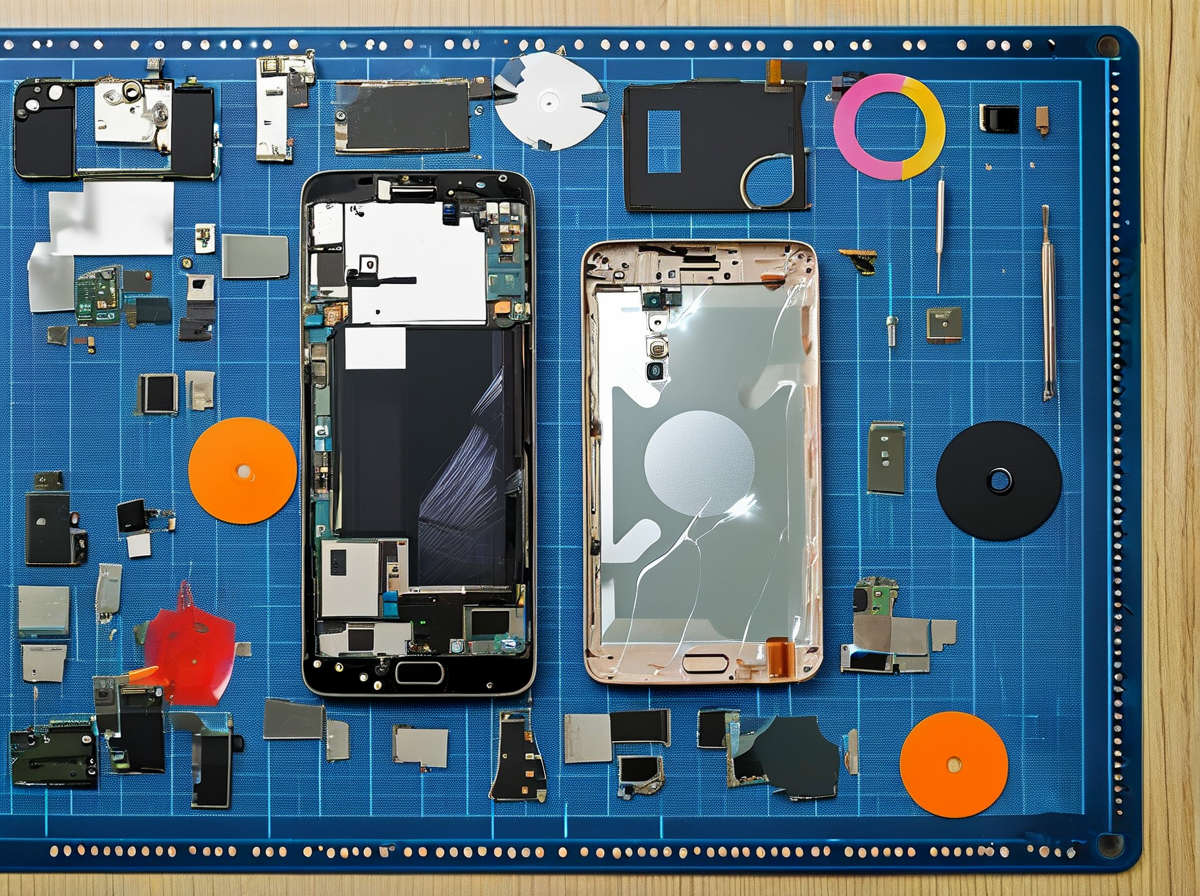
If you’re stuck figuring out how to remove important display message iPhone 13/14, this guide walks you through the physical screen process that directly affects that warning. From lifting the Display Assembly to handling Component Pairing, every move matters.
Removing the Display Assembly Without Damage
When dealing with an iPhone 13 or iPhone 14, screen removal isn’t brute force—it’s control.
-
Heat the edges using a Heat Gun (low setting).
-
Attach a Suction Cup near the bottom edge.
-
Slide Opening Picks along softened adhesive.
-
Use a thin Prying Tool only where resistance is minimal.
-
Warm perimeter evenly (60–80°C range).
-
Lift slightly—never more than 30 degrees.
-
Insert pick, glide slowly.
-
Avoid stressing the Display Assembly cable.
⚠️ Never twist upward aggressively; flex cables tear easily.
The goal isn’t speed. It’s preserving connectors so you don’t worsen the important display message issue later.
Disconnecting Proximity Sensor and Flex Cable
Now you’re inside. Pause.
-
Remove screws using a precision Screwdriver.
-
Disconnect Battery Disconnect before touching display lines.
-
Use a Spudger—not metal—on each Connector.
Inside the device:
-
Lift bracket shielding the Logic Board.
-
Pop off the Flex Cable connectors gently.
-
Detach the Proximity Sensor assembly without bending it.
Short and simple: no prying under chips, no sideways force. Clean disconnection prevents extra errors when researching how to remove important display message iPhone 13/14 later on.
Installing the Replacement Screen with Frame Adhesive
Alignment impacts both screen stability and warning triggers.
| Component Area | Alignment Tolerance | Pressure Time | Adhesive Type |
|---|---|---|---|
| Top Edge | ±0.5 mm | 30 sec | Pre-cut Frame Adhesive |
| Side Rails | ±0.3 mm | 45 sec | Waterproof Seal |
| Bottom Edge | ±0.5 mm | 30 sec | OEM-grade Strip |
Reconnect the Display Connector, check seating twice, then apply even pressure across the Replacement Screen.
Good adhesive placement helps maintain Water Resistance Seal and avoids sensor misreads tied to the important display alert.
Quality parts from Screen Stocks make this stage smoother and reduce compatibility headaches.
Reassembly Techniques to Avoid Warning Notification
Here’s where most people slip.
To reduce the Warning Notification:
-
Reconnect original components when possible.
-
Preserve True Tone data.
-
Avoid interrupting Screen Calibration.
-
Keep firmware current before a Software Update.
Deep inside the system:
-
The Firmware checks part identity.
-
The phone verifies Original Parts through Component Pairing.
-
Mismatched data triggers the alert tied to how to remove important display message iPhone 13/14.
Counterpoint Research noted in its 2025 aftermarket repair outlook that device pairing restrictions continue shaping independent repair outcomes, especially for display assemblies.
So yes, physical installation matters—but EEPROM programming determines full authenticity removal. Many customers working with Screen Stocks combine premium screens with professional pairing tools to address how to remove important display message iPhone 13/14 effectively.
If you’re searching how to remove important display message iPhone 13/14 or trying to remove important display message on iPhone 14, the hardware steps above are your foundation.
EEPROM Programming and True Tone Repair
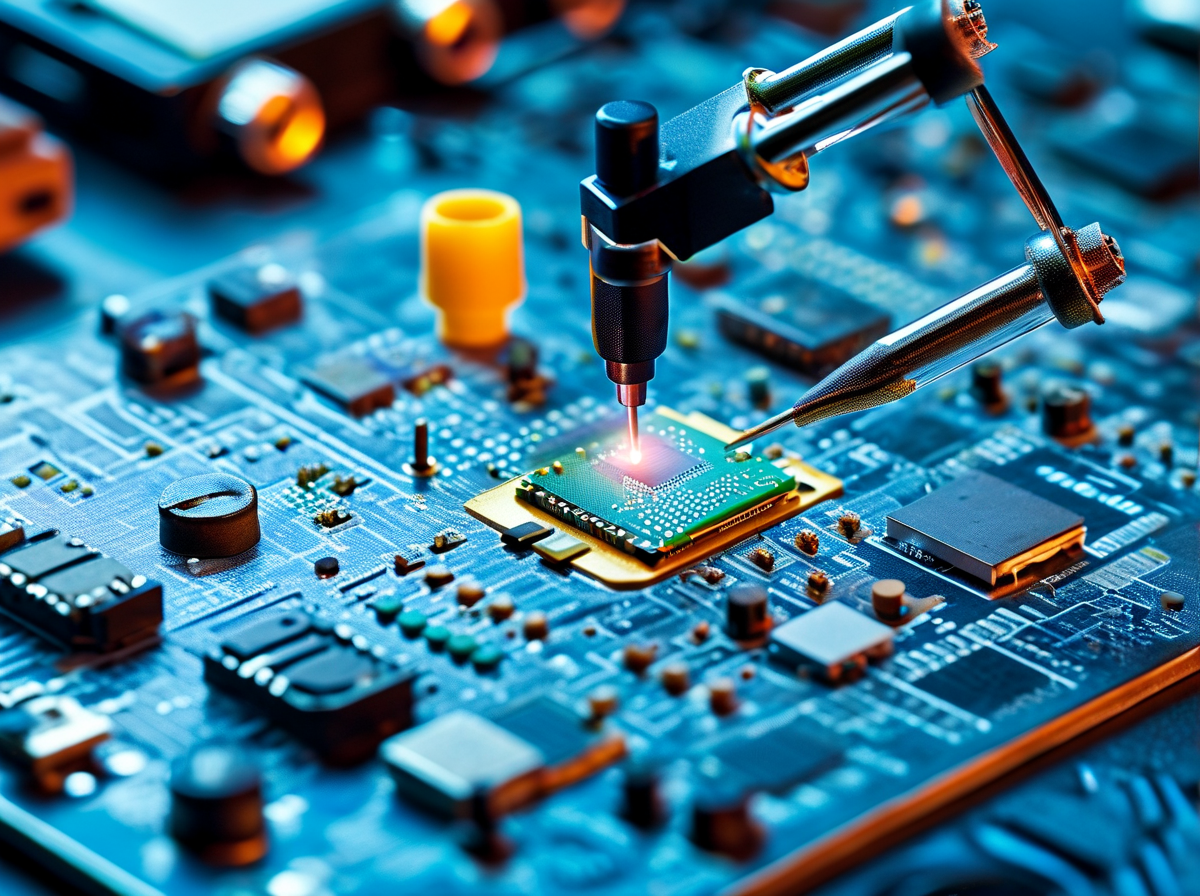
If you’re searching how to remove important display message iPhone 13/14, you’re really dealing with EEPROM pairing and True Tone calibration. This is where hardware meets firmware, and small mistakes can lock that display alert in place.
Accessing the EEPROM Chip on Logic Board
When tackling how to remove important display message iPhone 13/14, physical access to the EEPROM chip is the starting line.
-
Locate the logic board under magnification.
-
Stabilize with a board holder before heat work.
-
Prepare a calibrated soldering iron and desoldering tool.
Inside the device:
-
Disconnect battery and display flex.
-
Under a microscope, identify EEPROM near display connector.
-
Apply controlled heat, lift chip carefully.
-
Mount onto a chip reader for data extraction.
Key tool stack:
-
Microscope
-
Chip reader
-
Precision tweezers
One slip can damage adjacent IC lines. No rush here. Clean pads. Reball if required. Reinstall only after verified read. That’s how technicians safely approach remove important display message iPhone 13 hardware-level fixes.
Serial Number Data Transfer Protocol Explained
The reason you still see the alert after a screen swap? The serial number mismatch.
To remove important display message iPhone 13/14, the original display identity must be cloned.
Nested workflow:
-
Data Capture
1.1 Connect display via EEPROM programmer
1.2 Launch programming software
1.3 Extract serial payload
-
Data Validation
2.1 Run data verification
2.2 Confirm checksum integrity
2.3 Check device compatibility
-
Data Writing
3.1 Attach replacement screen
3.2 Inject original serial
3.3 Re‑verify integrity
As IDC noted in its 2025 repair ecosystem update:
“Component-level serialization remains central to device authentication and post-repair system messaging.”
Skip this, and you won’t remove display message iPhone 13/14 successfully.
For repair shops sourcing matched displays, Screen Stocks provides pre-tested units that simplify pairing logistics.
Firmware Update for Controller Chip Integration
Even after cloning, some units still flash warnings. That’s where firmware update alignment matters.
Controller integration stack:
-
Controller chip
-
Device firmware
-
Flash utility via software tool
Process chain:
-
Confirm iOS build.
-
Compare with controller revision.
-
Execute chip programming.
-
Reboot and validate system compatibility.
If firmware lags, you may still see the important display alert iPhone 14 users complain about. Updating ensures the controller speaks fluently with iOS security checks. That’s the deeper layer behind how to remove important display message iPhone 13/14 permanently.
Calibrating True Tone Sensor in Technical Support Lab
After EEPROM syncing, the True Tone sensor often needs recalibration.
Lab calibration flow:
-
Connect to calibration device.
-
Initiate display calibration profile.
-
Sync ambient sensor data.
-
Validate color accuracy under 6500K reference lighting.
Short checks matter:
-
No yellow shift.
-
No brightness pulsing.
-
No ambient mismatch.
To clear important display notification iPhone 13 completely, pairing plus calibration must both pass diagnostics.
Professional labs, including partners supplied by Screen Stocks, treat this as a single integrated repair cycle—not a quick patch.
That’s the real answer to how to remove important display message iPhone 13/14: precise EEPROM handling, correct serial transfer, firmware harmony, and calibrated True Tone alignment. Skip one layer, and the message sticks around.
Post-Repair Calibration and Troubleshooting
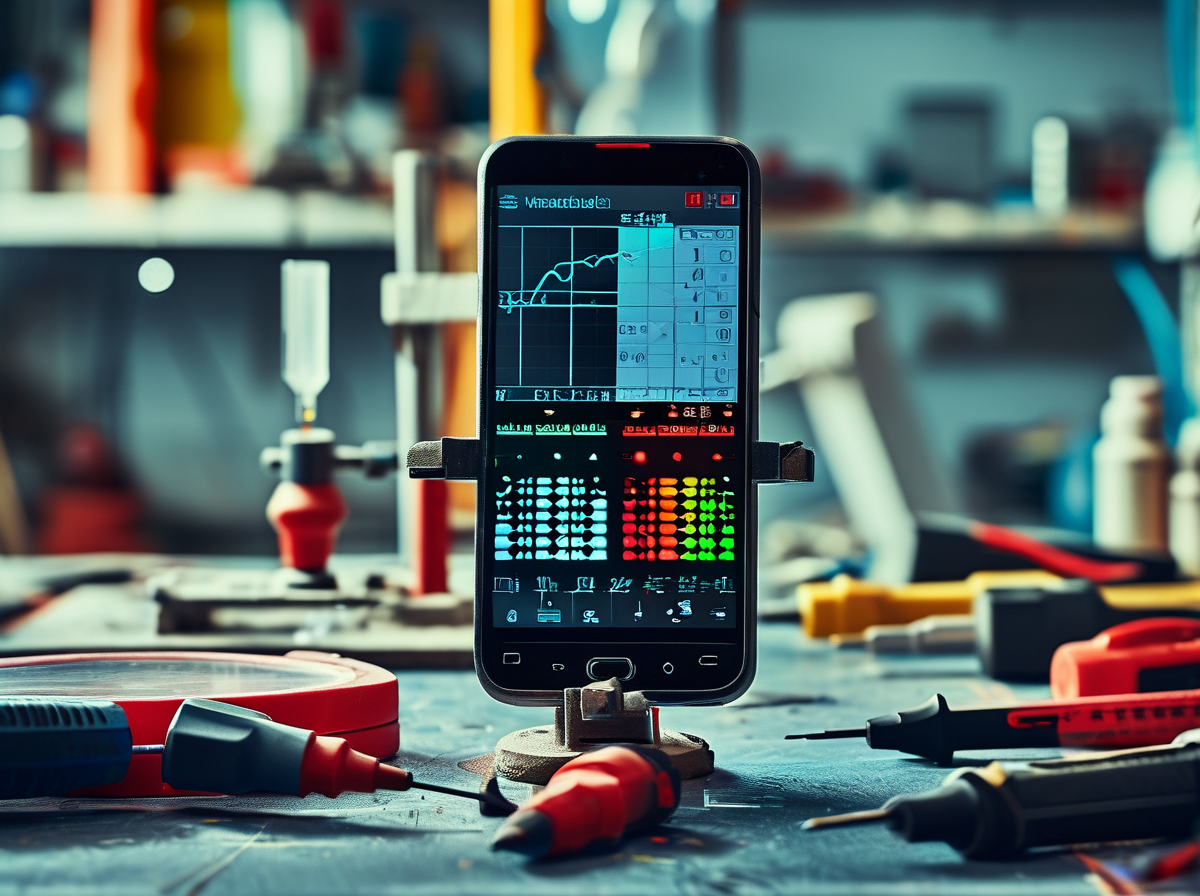
When that annoying display alert won’t disappear, it can feel like your phone’s judging your repair job. If you’re searching how to remove important display message iPhone 13/14, this guide walks through calibration, system fixes, and hardware checks in a practical, no-nonsense way.
Calibration Steps for Ambient Light Sensor Accuracy
After a display replacement, incorrect screen brightness or disabled True Tone usually links to the ambient light sensor. Proper display calibration restores color accuracy and stabilizes auto-brightness.
Controlled Calibration Benchmarks
| Lighting (Lux) | Expected Brightness (%) | True Tone Status | Color Temp (K) |
|---|---|---|---|
| 50 | 15–20 | Active | 3000–3500 |
| 300 | 40–55 | Active | 4000–4500 |
| 800 | 80–100 | Active | 5000–6500 |
Follow this flow:
-
Update to the latest software update version.
-
Reset display settings.
-
Perform sensor recalibration under controlled lighting.
-
Verify ambient light sensor response using diagnostic tools.
If you’re still asking how to remove important display message iPhone 13/14 after calibration, the issue likely isn’t brightness—it’s part authentication.
Short checks that help:
-
Toggle True Tone off/on.
-
Compare manual vs auto screen brightness.
-
Inspect sensor window for dust.
How to Resolve Unknown Part Message Quickly
The unknown part message appears when the system fails part recognition after a display replacement. This is the heart of most searches for how to remove important display message iPhone 13/14.
According to a 2025 Counterpoint Research repair insight brief:
“Device authentication systems are increasingly tied to serialized components, limiting functionality when part data transfer is incomplete.”
To clear the error message, move through this ladder:
-
Confirm EEPROM data transfer from original screen.
-
Use certified tools for repair verification.
-
Apply a compatible software fix if supported.
-
Recheck system logs for authentication flags.
If that fails, the only stable answer to how to remove important display message iPhone 13/14 is reinstalling an OEM-matched display assembly with proper data sync.
Final Troubleshooting: Check Hardware Components
If the alert sticks around, dig into hardware components. Think physical before digital.
-
External Inspection
1.1 Check display assembly alignment.
1.2 Inspect connector cables for folds.
1.3 Look for visible physical damage.
-
Internal Inspection
2.1 Reseat screen connectors for proper component seating.
2.2 Examine flex lines under magnification.
2.3 Test continuity using diagnostic tools.
-
Logic Board Interface
3.1 Inspect socket pins.
3.2 Confirm voltage flow.
3.3 Rule out board-layer separation.
Many people searching how to remove important display message iPhone 13/14 overlook this stage. Yet a slightly loose connector can trigger the same unknown part message as a failed data transfer.
Fix the root cause, and the warning finally disappears.
OEM vs Aftermarket Displays
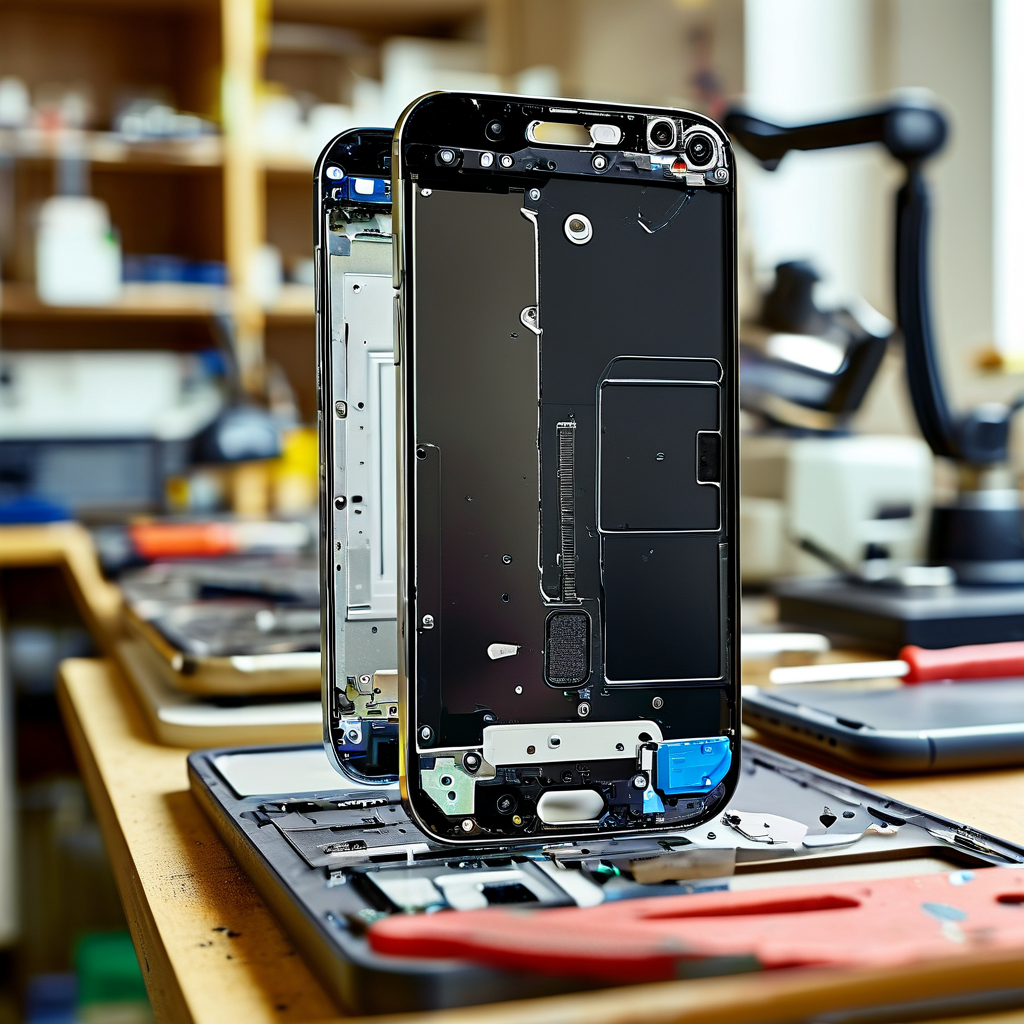
Choosing between an original screen and a cheaper replacement can feel confusing, especially when you’re searching for how to remove important display message iPhone 13/14. The display you install directly affects that warning, device stability, and resale value.
OEM Displays
An Original Equipment Manufacturer screen—often called a Genuine Apple part—retains factory-coded data that keeps your phone running smoothly. That matters when dealing with how to remove important display message iPhone 13/14, since authentication is tied to internal chips.
-
Keeps Device compatibility intact
-
Preserves True Tone and brightness calibration
-
Avoids non‑genuine alerts
-
The serial number matches the logic board.
-
The EEPROM data remains readable.
-
System verification passes automatically.
When installed correctly, a Factory-installed display or Authentic screen prevents the system from flagging hardware changes. No warning. No pop‑ups.
If you’re troubleshooting how to remove important display message iPhone 13/14, here’s how OEM works in practice:
-
Authentication Layer
-
Secure microcontroller handshake
-
Serial pairing validation
-
-
Display Performance
-
Color accuracy tuning
-
Touch response mapping
-
-
System Integration
-
iOS diagnostic approval
-
No persistent notification
-
A High-quality screen ensures Reliable performance, especially after updates. Many repair professionals prefer sourcing through trusted suppliers like Screen Stocks to guarantee traceable parts and stable inventory.
“The global smartphone repair market continues to expand as consumers prioritize device longevity and certified components,” noted IDC in its 2025 repair industry outlook.
That shift explains why more users look up how to remove important display message iPhone 13/14 before choosing a part.
Aftermarket Displays
A Third-party screen or Generic screen costs less, and that’s the main draw. For quick fixes, a Cost-effective option can seem tempting.
• Lower upfront cost
• Wider supplier availability
• Variable quality levels
However, a Non-original part often lacks EEPROM pairing data. That’s when users search again for how to remove important display message iPhone 13/14, hoping software tricks will clear it.
Process reality:
-
Hardware Difference
-
No factory serial binding
-
Limited calibration data
-
-
Software Reaction
-
iOS flags mismatch
-
Persistent notification appears
-
Short version? You might clear important display message iPhone 14 temporarily through programming tools, but full authentication rarely returns without original coding.
Screen Stocks provides both OEM-grade and carefully tested Replacement display options, helping reduce Potential compatibility issues. Still, if your goal is truly solving how to remove important display message iPhone 13/14, OEM remains the cleaner path.





Recent Comments