


SEO Description
Cracked glass drama? Pick the perfect phone screen replacement—durable, bright, wallet-friendly—and save your sanity (and thumbs).
A replacement phone screen should feel invisible: tap, swipe, scroll, done. When it starts ghost touching, the cause is usually a mix of digitizer signal noise, flex-cable seating, adhesive pressure, calibration drift, or a lower-grade replacement panel.
This guide explains why a new screen can register phantom taps, how to separate hardware faults from software glitches, and what repair shops or parts buyers should check before blaming the phone itself.
Key Takeaways: Phone Screen Ghost Touch Causes
➔ Connection Check: Inspect and reseat the digitizer flex cable to eliminate signal noise and random ghost touches.
➔ Calibration Tune-Up: Run OEM tools to adjust touch sensitivity, Multi-touch mapping and on-screen fingerprint zones for precise response.
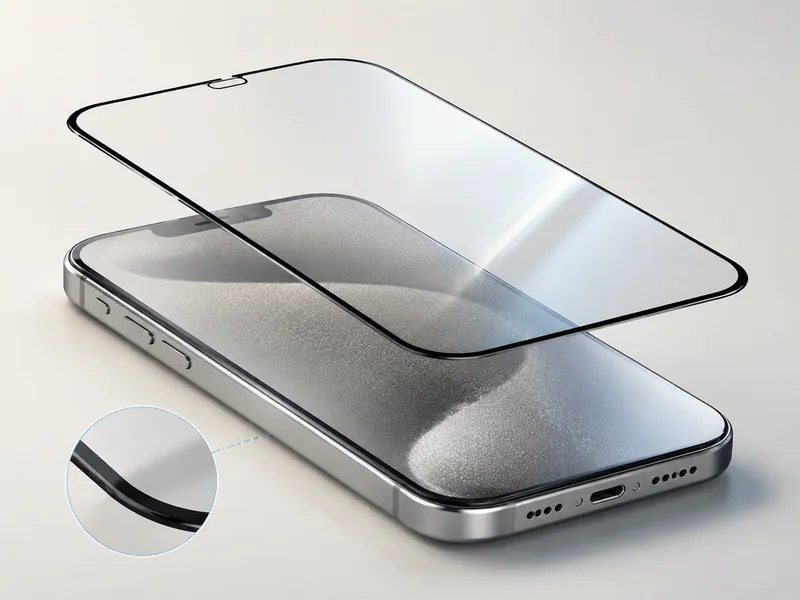
➔ Adhesive Alignment: Apply uniform bonding under Gorilla Glass to prevent pressure-induced false taps and maintain panel seating.
➔ Panel Quality Choice: Opt for OEM assemblies when possible—matched controller ICs, shielding and adhesive fit deliver consistent touch latency and reduce glitch risks.
Why Is My Replacement Phone Screen Ghost Touching
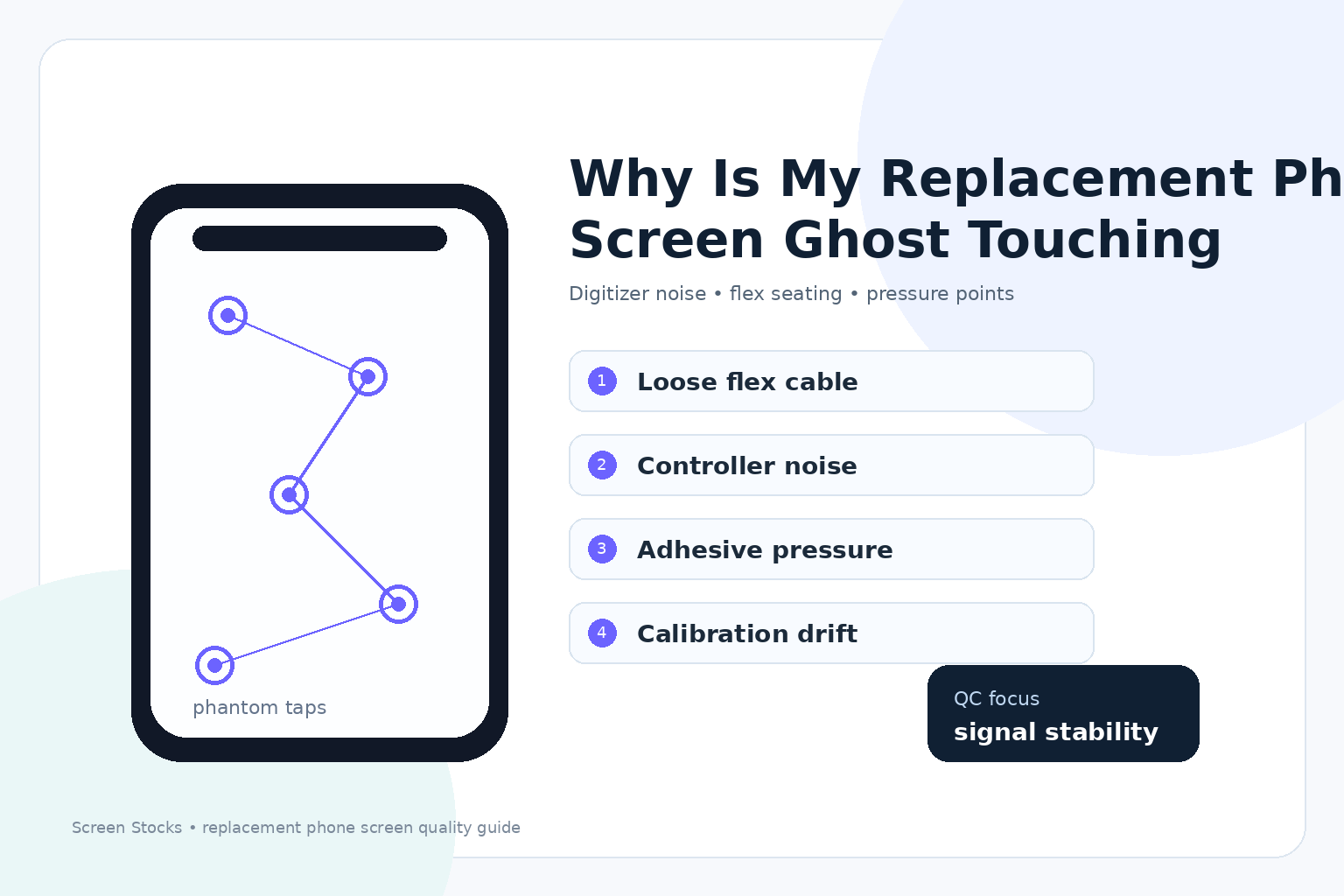
If your replacement phone screen starts “typing on its own,” it’s usually not spooky; it’s physics, parts, and tiny tolerances biting back. A phone screen is really a stack of layers, and a small mismatch can turn into ghost touches. Below are the common culprits, plus what to look for on your own phone screen before you blame the OS.
Loose Digitizer Connection on OLED Assemblies
A loose Digitizer Connection on OLED Assemblies can make a Screen act like it has a mind of its own, especially when the Flex cable isn’t fully seated. That tiny gap can turn into a grounding hiccup, then the controller reads noise as real contact. Your phone screen responds with Ghost touching—random swipes, jittery scroll, and multi-touch that you never did.
Quick tells on a replacement phone screen:
taps “stick” near edges after you press the frame
touch goes wild while charging (extra electrical noise)
pressure on bezel-less corners triggers a Malfunction
Common fix path (don’t rush it):
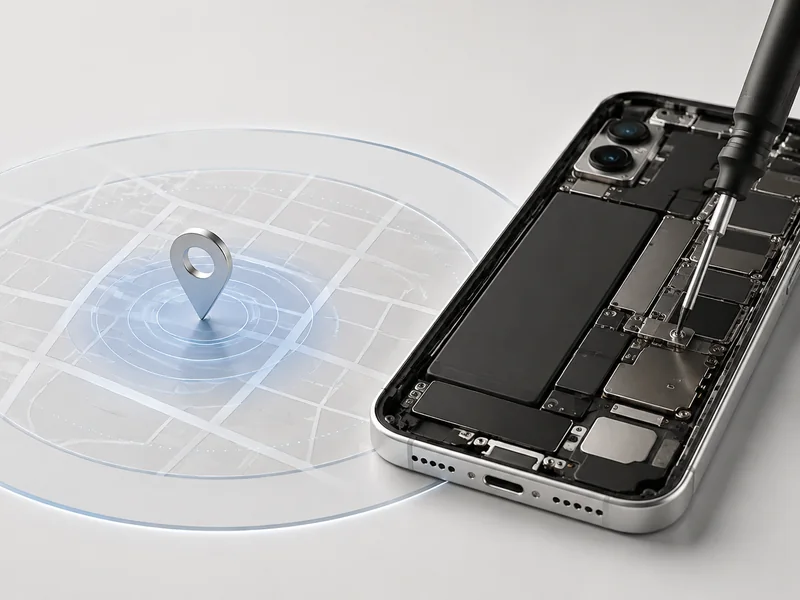
Power down, remove power, and reseat the Flex cable with firm, even pressure.
Check the connector latch; half-closed is still “open” for an OLED Digitizer.
Add insulating film where the Screen backplate might be kissing the midframe.
If you want fewer returns and cleaner QC on each phone screen, Screen Stocks units are usually pre-checked for connector seating and flex alignment.
Inconsistent Touch Latency in IPS Replacement Panels
Aftermarket IPS can look fine but “feel” wrong, because the touch controller IC and firmware timing may not match your device’s scan rate. On a phone screen, that shows up as delayed taps, missed long-press, or that annoying “dragging” sensation mid-scroll.
Here’s the practical way to sort it out on an IPS/LCD phone screen:
Touch timing symptoms
intermittent lag in one direction
pinch-zoom stutters
edges register late
What causes it (nested, because it stacks up)
Controller mismatch
different sampling frequency than stock
noisy sync with display refresh
Power/ground quirks
weak shield tape
cheap flex routing near antennas
Touch-latency spot check on your replacement phone screen (example readings):
| Test pass | Avg latency (ms) | Missed gestures (per 50) |
|---|---|---|
| 1 | 38 | 2 |
| 2 | 61 | 7 |
| 3 | 44 | 3 |
| 4 | 79 | 11 |
If your numbers bounce like that, you’re dealing with inconsistent controller timing, not just “dirty glass.” For steadier behavior, pick a replacement phone screen from Screen Stocks where panel/controller pairing is kept consistent across batches.
Delta E Calibration Drift in Super AMOLED Modules
Color drift sounds like a “looks” problem, but on some Super AMOLED modules it can ride along with controller instability. When gamma and brightness curves wander, power draw can spike in HDR or peak brightness, and touch noise rises with it; the phone screen starts misreading micro-changes as contact.
What you’ll notice comes in short bursts:
whites shift warmer, then cooler, within minutes
brightness pumps during auto-brightness transitions
ghost touches show up mainly in HDR video or outdoors
To pin it down without fancy gear:
Lock brightness at 60%, test touch for two minutes.
Toggle HDR content (or maximum brightness), test again.
If phone screen touch gets worse only under high output, suspect calibration drift plus a shaky touch controller path.
A cleaner-calibrated module helps, but so does basic build quality; Screen Stocks tends to avoid the worst “pretty colors, messy control” AMOLED lots, which is where this problem loves to hide.
Unstable Touch? Fix Your Replacement Screen Fast
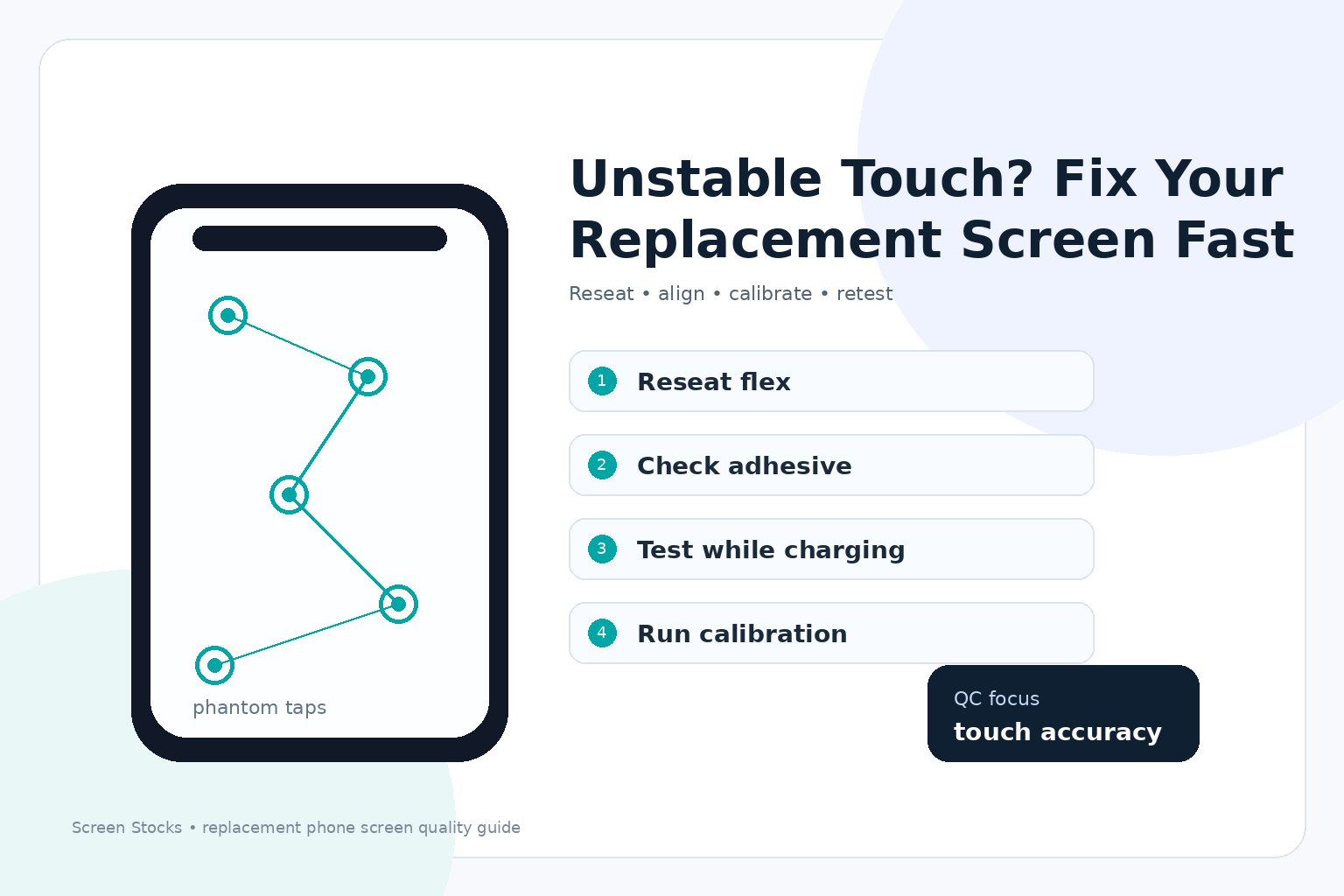
Quick heads-up: a flaky touchscreen after a swap usually isn’t “bad luck.” It’s a stack of small misses—cable seating, adhesive pressure, and skipped calibration—that add up to ghost touch and weird responsiveness. If your phone screen feels off, this gets it back in line.
Reseat the Flex Cable for Stable Haptic Feedback
When a replacement digitizer acts jumpy, start with the connector—tiny movement equals noisy signals and messy timing.
Do this in order:
Power down fully and disconnect the battery.
Pop the touchscreen flex up and press it back down until it sits flat.
Refit the shield/brace so the plug can’t “walk” loose.
What to look for (quick checks):
input lag that comes and goes when you lightly twist the frame.
Tap buzz (responsiveness) landing late, or double-buzzing after one press.
Dead corners on the phone screen, then random ghost touch later.
If you’re using parts from Screen Stocks, still treat it like any other screen replacement:
Clean the socket area.
Avoid prying on the digitizer tail.
Reseat once, then test; don’t keep “mashing” the connector.
Apply Proper Adhesive for Gorilla Glass Alignment
Bad adhesive work can pinch the stack under Gorilla Glass, so the touchscreen senses pressure that your finger never made. Annoying, but fixable.
Dry-fit the phone screen and confirm the frame isn’t warped.
Lay adhesive evenly—no thick blobs near edges where the digitizer rides.
Press from center outward, then clamp lightly while curing.
Re-test responsiveness with a bright white screen (pressure issues show up fast on IPS display technology).
| Symptom on phone screen | Likely adhesive issue | Fix effort (1–5) |
|---|---|---|
| Edge taps trigger nearby buttons (ghost touch) | Edge adhesive too thick | 3 |
| Center feels “mushy,” more input lag | Uneven pressure under glass | 4 |
| One side lifts, touch drops | Not enough bond on that rail | 2 |
| Swipes stutter, poor responsiveness | Frame twist + uneven cure | 4 |
| Random touches while idle | Digitizer preloaded by squeeze | 3 |
Also: “phone” + “screen” problems often show up as simple alignment misses—treat the phone screen like a precision part, not a sticker.
Recalibrate Touchscreen Sensitivity and On-screen Fingerprint Sensor
Even with perfect seating, an IPS swap can change electrical behavior, so calibration matters for touchscreen thresholds and tracking.
Start with the OEM tools:
touchscreen tuning for thresholds and multi-touch.
Fingerprint module retrain so touch zones don’t overlap.
Dial it in, not just “run it once”:
Brightness at 30%, 70%, 100% (some panels shift sensing with backlight power in this display technology).
Test: typing speed, long-press, diagonal swipes across the phone screen.
If issues stick after screen replacement:
Recheck for digitizer pressure points.
Confirm there’s no lingering input lag from a half-seated flex.
Then re-run calibration and save the profile.
If you grabbed a replacement from Screen Stocks, you’re already starting with decent hardware; this last pass is what makes the phone screen feel “normal” again, with clean responsiveness and no ghost touch.
4 Steps To Fix Your Phone Screen Glitch
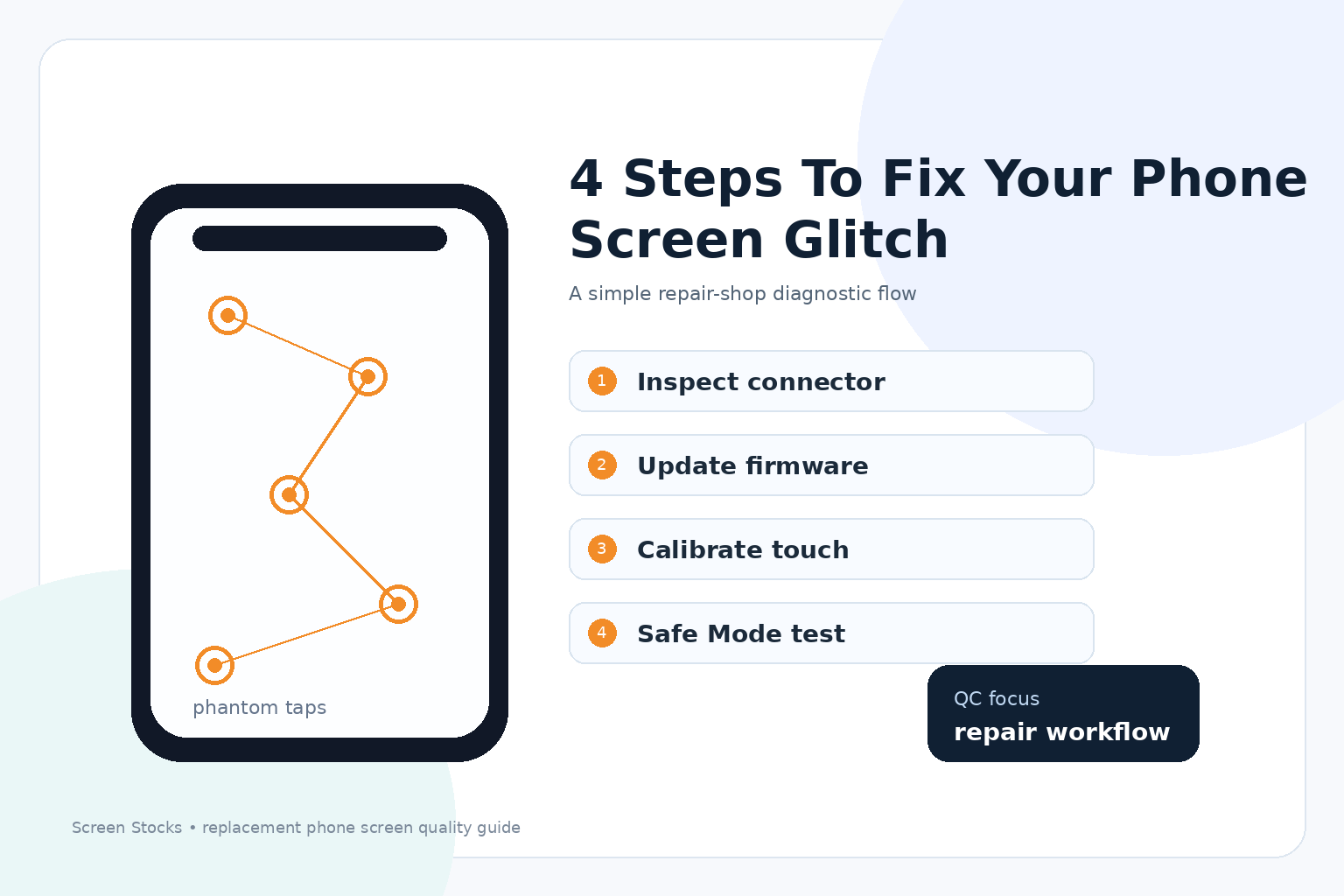
That weird phone screen glitch can feel like your phone is possessed—missed taps, random swipes, and lag that comes and goes. This run-through keeps it practical, mixing quick checks with settings tweaks so your touch screen behaves again.
Step 1: Inspect and Clean the Touchscreen Connector
If your phone screen is acting up only when you move the device or tap fast, the connector is a usual suspect, and Touchscreen sensitivity can tank from one tiny speck. For parts and vetted tools, Screen Stocks can point you toward the right fit.
Start with the physical reality check
Power down fully, then open the back carefully (or have a shop do it).
Look for dust, oxidation, and bent pins; even light Screen degradation around the flex area can hint at stress.
Clean like you mean it
Use 90%+ isopropyl on a lint-free swab; avoid soaking.
Re-seat the connector with even pressure so the contact is consistent.
What “bad contact” looks like in real life
Sudden dead zones, jitter, or phantom taps when the touch screen is at higher refresh settings.
Uneven gesture response near edges, especially on AMOLED assemblies where Display modules run thin.
Your phone screen should feel boring again. That’s the goal.
Step 2: Update Drivers to Optimize Refresh Rate
Driver or firmware mismatches can make the touch sampling and display refresh fall out of sync, and your AMOLED display is picky about timing. If you’re seeing hiccups after an update, Screen Stocks support will usually tell you what firmware branch matches your model.
Check what you’re running
- Settings → About → build number / firmware.
Update in the cleanest order
- System update first, then vendor display/touch patches.
Re-test with a simple loop
- Open a notes app, draw fast lines, then scroll hard; watch for skips.
Here’s a quick “what changes” cheat sheet for a phone screen after a driver refresh, using typical touch + refresh combos:
| Refresh Rate (Hz) | Touch Polling (Hz) | Avg Touch Latency (ms) | Jitter Events / 60s |
|---|---|---|---|
| 60 | 120 | 38 | 9 |
| 60 | 240 | 31 | 7 |
| 90 | 240 | 26 | 5 |
| 120 | 240 | 22 | 3 |
| 120 | 360 | 18 | 2 |
If you still get odd color shifts after updates, keep an eye on Delta E changes; it can hint at Color calibration issues rather than touch timing.
Step 3: Calibrate Multi-touch Settings for Accuracy
On a modern phone screen, calibration is basically the map that matches your finger to pixels, and that map can drift after replacements or heavy use. When Color drift or odd tinting shows up on a AMOLED display, people blame touch, but you can have both problems at once.
Confirm the symptom before you “fix” it
Tap targets that are known and tiny: keyboard corners, close buttons, the status bar.
If taps land offset, calibration is worth the time.
Do the calibration with edge behavior in mind
Curved glass needs edge learning; go slow around gesture zones.
If your phone supports it, reset touch calibration, then re-run it while holding the phone how you normally do.
What success looks like
- No ghost trails, fewer accidental swipes, and better Color accuracy perception because your inputs match what you expect to see.
If you replaced parts, Screen Stocks listings can help you match the right Display modules so calibration doesn’t feel like a daily chore.
Step 4: Test in Safe Mode to Isolate Software Faults
Safe Mode is the quickest way to find out if your phone screen is being messed with by overlays, gesture apps, or “screen filter” tools that quietly hijack touch handling.
Quick run
- Boot into Safe Mode, then test: typing, scrolling, pinch zoom, and fast swipes.
Read the result like a grown-up, not a gambler
If the glitch vanishes, uninstall recent apps that draw over the screen or change gestures.
If it stays, loop back to hardware: connector seating, panel fit, and Touchscreen sensitivity under pressure points.
Tiny extra check
- If color issues persist during testing, that leans toward Color calibration trouble or panel wear—classic Screen degradation on older OLEDs.
When your phone screen is stable in Safe Mode, you’re not chasing ghosts; you’re chasing one bad app.
OEM Vs. Aftermarket Screens: Ghost Touch Risks
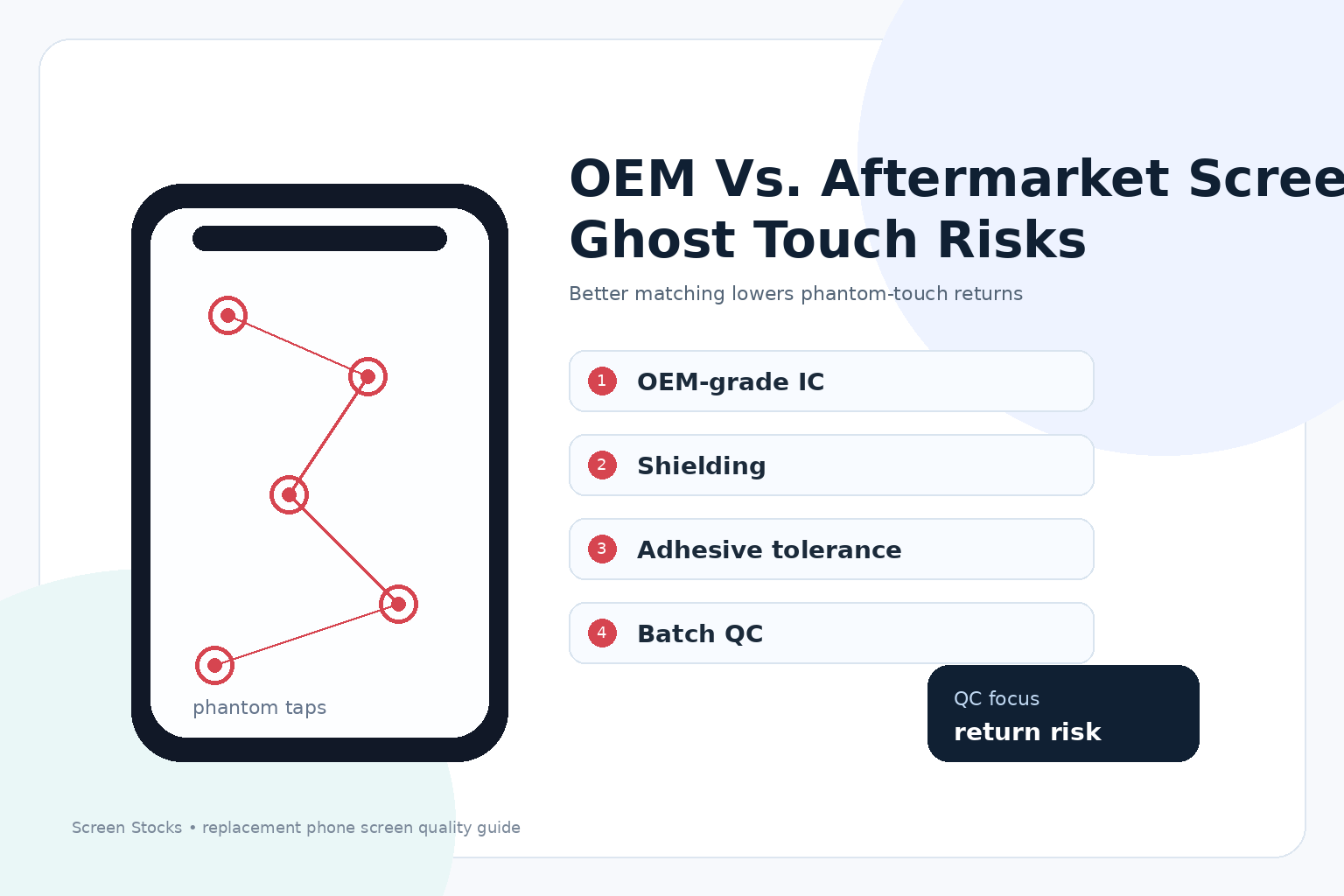
Quick take: your phone screen isn’t just glass; it’s a stack of parts that either play nice together or start acting haunted. Pick the wrong phone screen build, and random taps can show up when your hands are clean and your patience isn’t.
OEM Screens
OEM builds usually win because the whole touch stack is tuned as a unit, not patched together after the fact. That matters when a phone screen starts misreading electrical noise as a finger.
Controller IC fit
Matched touch controller firmware and sampling rules reduce stray inputs.
Stable touch latency keeps tap timing predictable, especially near edges.
Grounding and shielding
Factory grounding paths are consistent across the frame, flex, and digitizer.
Proper digitizer shielding helps block charger noise that can trigger ghost touch.
Adhesive and mechanical stack-up
Correct adhesive thickness avoids micro-gaps that let the touch sensor flex.
Better uniformity and color accuracy tend to come with tighter process control, so the assembly isn’t “half premium, half mystery.”
Practical buying note
- If you’re sourcing an OEM-grade screen assembly, Screen Stocks usually labels the exact OEM grade and frame compatibility, so you’re not guessing on your next phone screen swap.
Aftermarket Screens
Aftermarket OLED and IPS parts can be fine, but the ghost-touch risk climbs when tolerances drift—tiny electrical and physical differences add up fast on a phone screen.
Where the noise sneaks in
Controller IC bins vary; some run hotter, some filter worse.
Grounding can be “good enough” until you plug in a cheap charger.
What you feel day-to-day
Lower refresh rate support can make taps feel late, then doubled.
Slower response time plus weaker oleophobic coating can turn smudges into false swipes.
Quick spot-check before you commit
Look for consistent edge response (no dead strips, no “phantom scroll”).
Tap-test while charging; that’s when touch noise shows up.
| Build factor (aftermarket vs OEM) | Typical drift that affects ghost touch | Risk score (1–5) |
|---|---|---|
| Adhesive thickness tolerance | ±0.05–0.20 mm | 4 |
| Grounding continuity (frame-to-flex) | 0.5–3.0 Ω | 5 |
| Touch controller scan rate | 90–180 Hz | 3 |
| Digitizer shielding coverage | 60–95% | 4 |
If you want fewer surprises, ask Screen Stocks for a phone screen option that specifies the touch controller family and frame bonding method; for a replacement phone display, that paperwork saves headaches.







Recent Comments