


When your phone’s mind games begin and the iPhone battery percentage stuck all day, even your screen seems to sigh for an upgrade.
When your iPhone battery percentage stuck at the same number all day, it feels like your phone’s playing mind games. That tiny icon runs your schedule, your playlists, your peace of mind.
A frozen reading signals a glitch between software, power chips, and the display updating data in real time.
Pew Research Center reports smartphones remain essential daily tools for most Americans as of 2025.
Why Is My Battery Indicator Frozen?
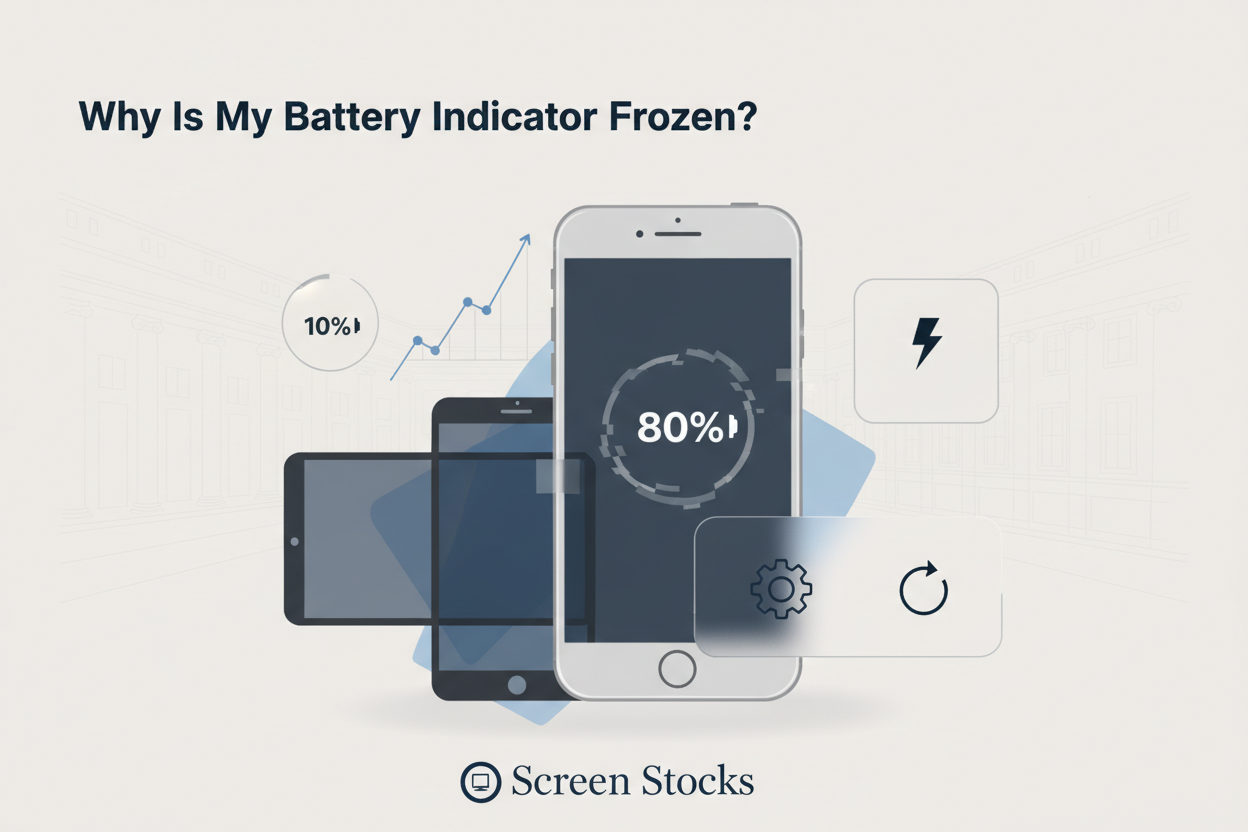
When your iPhone battery percentage stuck on one number all day, it feels sketchy. The phone works, but the battery percentage won’t budge. Let’s break down why your iPhone battery percentage stuck issue happens and how the system actually behaves behind the scenes.
Firmware Glitch Halting Percentage Indicator Updates
A hidden firmware hiccup inside the software system can freeze the percentage indicator updates, even while your battery drains normally.
-
Core trigger areas
-
System-level faults
-
Corrupted temporary cache inside the operating system
-
Interrupted background software updates
-
-
Battery data refresh delay
-
The display module reads old values
-
The percentage locks despite real-time power changes
-
-
-
How it plays out
-
The indicator stays at 80% for hours
-
Then suddenly drops 10% at once
-
If your iPhone battery percentage stuck after an update, the glitch usually sits inside the system display logic, not the battery itself. A quick restart refreshes the software display pipeline. If not, resetting system settings may realign how the firmware pushes live data to the screen.
Screen Stocks often reminds customers that software illusions can look like hardware failure, but they’re not always the same thing.
UI Rendering Bug Freezing the Battery Icon
Sometimes the issue isn’t power data. It’s the UI rendering bug affecting the battery icon and visual interface display.
-
Visual layer faults
-
Rendering engine stalls
-
The icon animation freezes
-
Charging symbol stops moving
-
-
Display driver conflicts
-
Minor crash inside the visual display driver
-
Interface fails to repaint
-
-
-
What you notice
-
Battery icon doesn’t change
-
Percentage text stays locked
-
Charging cable shows, but no animation
-
In this case, your iPhone battery percentage stuck problem is cosmetic. The phone still consumes power normally. A forced restart reloads the interface rendering layer and clears the frozen UI display. If your iPhone battery stuck percentage keeps happening, check for pending iOS patches.
Power Management IC Overload Disrupting Charge Level Display
When hardware joins the drama, the power management IC becomes the focus.
-
Hardware flow
-
Power management circuit
-
Regulates voltage
-
Sends charge data to the logic board display controller
-
-
If overloaded
-
Delayed signal transmission
-
Incorrect charge level display output
-
-
-
Possible causes
-
Aging battery cells
-
Sudden voltage spikes
-
Damaged internal component circuit
-
Here, the iPhone battery percentage stuck issue may reflect unstable reporting from the IC hardware, not just software confusion. If the battery level freezes during heavy gaming or fast charging, that’s a clue.
At this stage, diagnostic testing helps. Screen Stocks technicians typically inspect the power management IC circuit path before replacing parts, preventing unnecessary swaps.
If your iPhone battery stuck percentage keeps repeating after resets and updates, hardware inspection becomes the smarter move.
Soft Reset Vs. Hard Reset
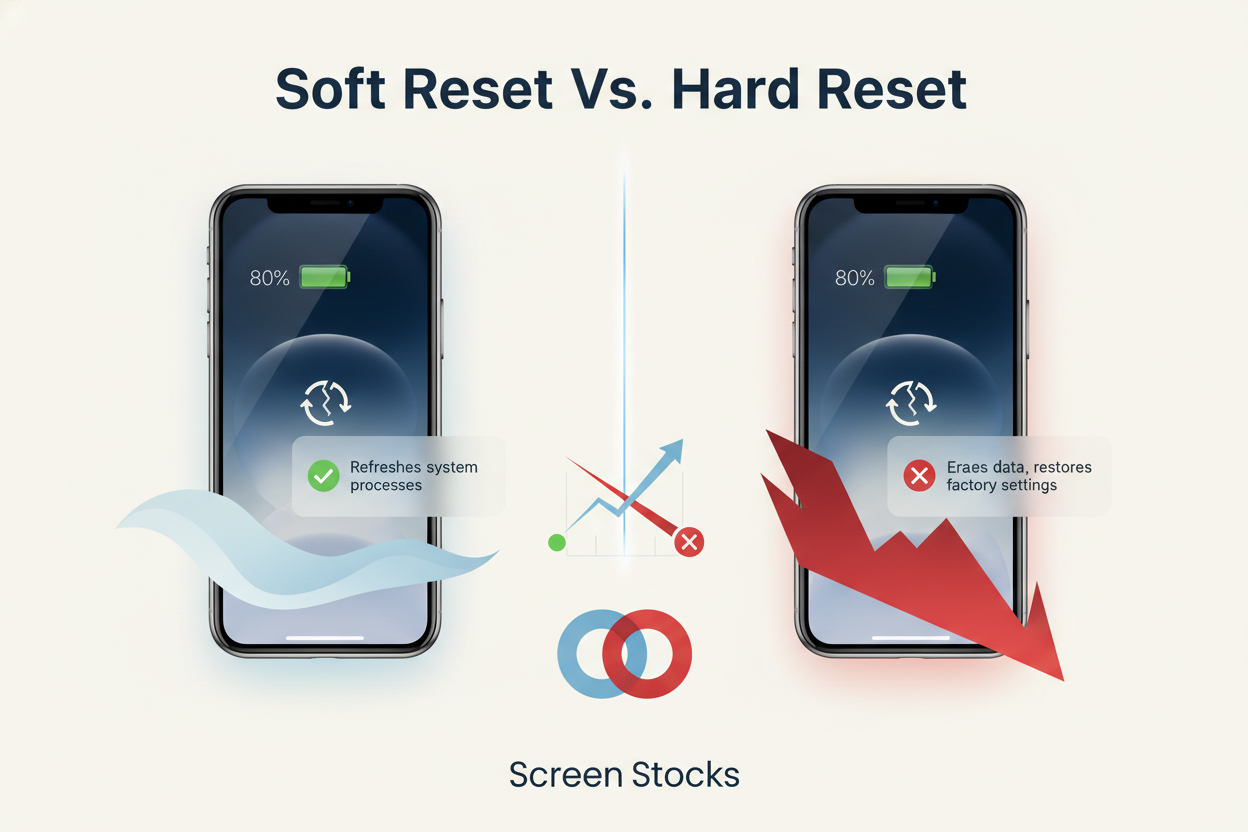
Your iPhone acting weird and the battery just frozen on one number? Yeah, that iPhone battery percentage stuck issue can drive anyone nuts. When your iPhone battery, percentage display, or stuck indicator won’t budge, knowing the right reset makes all the difference. A simple restart might fix it, or you may need something stronger.
Soft Reset
When the iPhone battery percentage stuck problem shows up but your phone still responds, a soft reset is usually the chill fix. It’s basic quick troubleshooting that protects data integrity and keeps everything intact.
-
Core purpose
-
Trigger a normal restart through system controls
-
Clear minor software issues
-
Smooth out temporary glitches
-
Perform a light system refresh
-
-
How it works internally
-
iOS safely closes background apps
-
The device performs a controlled reboot
-
RAM clears cached tasks
-
The battery indicator recalculates status
-
-
Best times to use it
-
iPhone battery percentage stuck at 80%
-
Battery display frozen after charging
-
Slight lag with no full system crash
-
Soft reset doesn’t touch photos, messages, or battery health data. It simply refreshes the operating system so the battery percentage stuck glitch can correct itself. For small annoyances, this is the move.
Hard Reset
If your iPhone battery percentage stuck issue sticks around and the screen stops responding, a hard reset steps in. This is a forced restart using a specific button sequence, built for an unresponsive system.
-
What makes it different
-
Direct hardware-level firmware refresh
-
Reactivates display controller
-
Resets power management IC
-
Helps during deeper software problems
-
-
Execution logic
-
Press volume up
-
Press volume down
-
Hold the side button
-
Wait for device unfreeze
-
-
Ideal scenarios
-
Black screen with battery stuck
-
iPhone battery percentage stuck after update
-
Full system crash
-
A hard reset doesn’t erase data either. It’s stronger troubleshooting, not a factory wipe. If you’re unsure which route to take, Screen Stocks shares clear guides so you don’t overdo it. For most battery stuck problems, start soft. Go hard only when your phone refuses to cooperate.
5 Steps To Force Restart Your iPhone
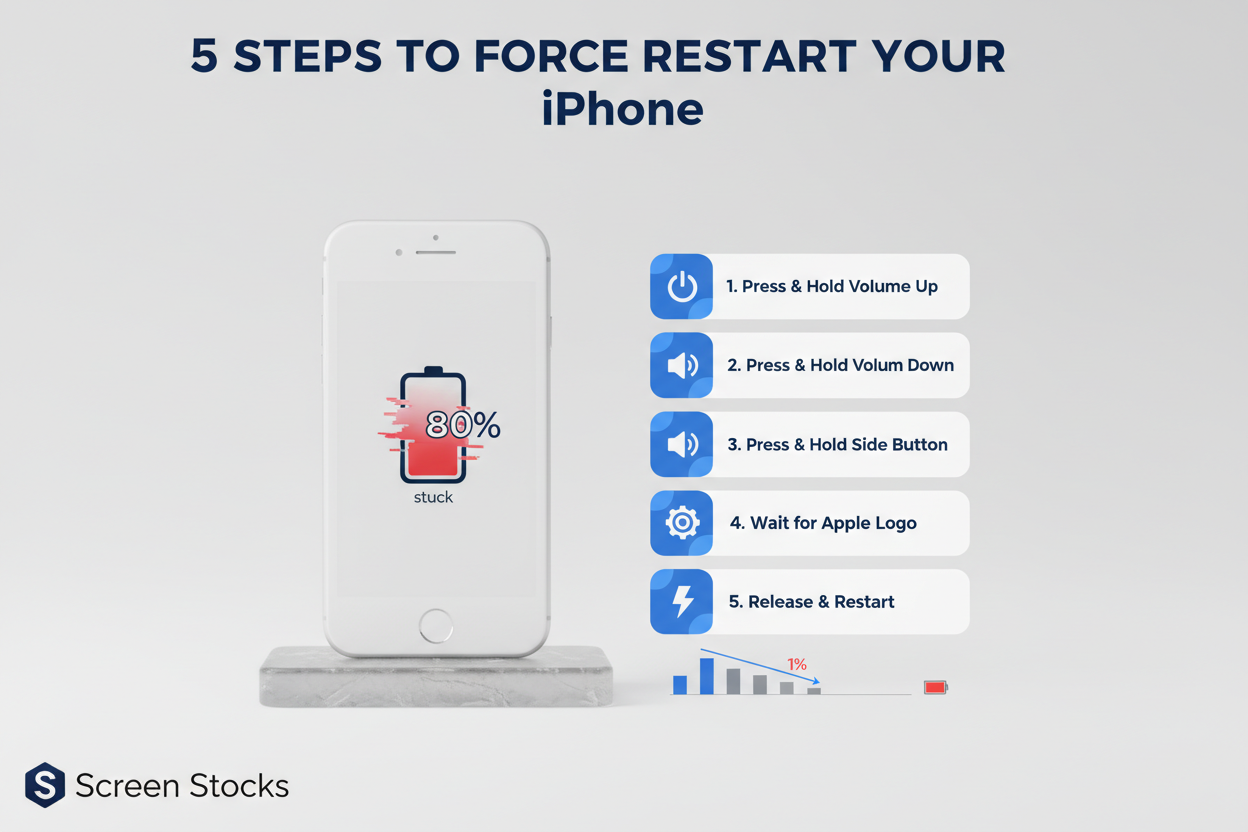
When your iPhone battery percentage stuck at 80% all day or frozen at 1% while charging, it feels sketchy. The issue—iPhone battery percentage stuck, battery percentage stuck on iPhone, or just an iPhone battery stuck glitch—often links to minor software hiccups. Below are practical fixes that tackle the iPhone battery percentage stuck problem head‑on.
Initiate Force Restart by Resetting the Display Controller
A force restart doesn’t wipe data; it resets hardware signals, including the display controller that shows your battery level.
-
Press volume up, then volume down.
-
Hold the side power button.
-
Keep holding until the screen goes black and the Apple logo appears.
Inside the device, this resetting process:
-
Cuts power briefly to the display pipeline
-
Reinitializes the device graphics chain
-
Clears frozen battery overlays
If your iPhone battery percentage stuck issue is tied to the display controller, this quick initiate sequence often fixes it fast.
Clear UI Rendering Glitches with a Firmware Glitch Reset
Sometimes the UI rendering layer glitches. The battery icon freezes even though charging works. A firmware-level reset through force restart helps clear corrupted software states inside the interface.
You might notice:
-
Charging animation not moving
-
Percentage not increasing
-
Battery symbol stuck in one frame
These are classic glitches. Resetting refreshes the display stack and resolves many cases of iPhone battery percentage stuck without tools or apps.
Trigger Diagnostic Mode to Refresh the Battery Icon
After reboot, iOS quietly runs diagnostic mode checks in the background. That trigger refresh cycle recalibrates battery reporting inside the system.
According to Apple’s 2025 iOS power management overview, battery status is dynamically recalculated after system restarts to maintain display accuracy.
When the display reloads:
-
The battery icon redraws
-
The percentage syncs with real-time status
-
Background power readings update
If your iPhone battery percentage stuck at a fixed number, this internal refresh often restores normal tracking.
Reconnect the Battery Connector for a Clean System Reboot
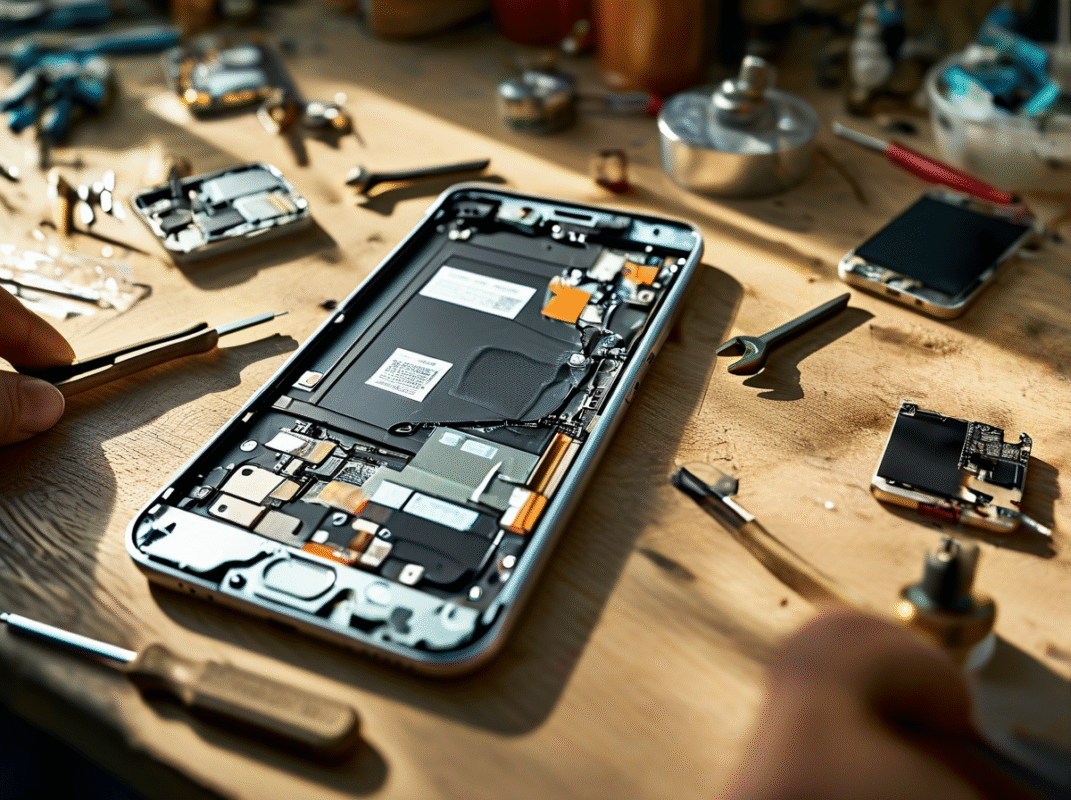
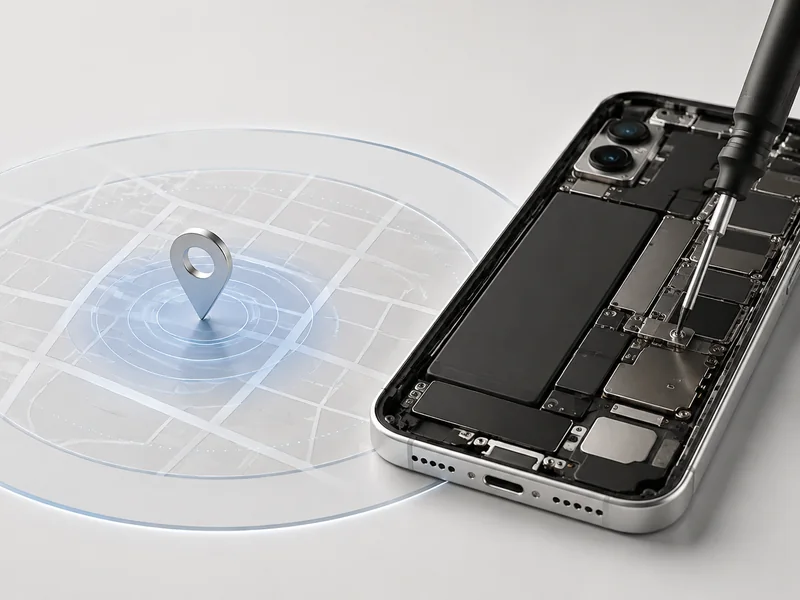
If software resets fail and the iPhone battery percentage stuck problem keeps coming back, hardware may be involved.
Inside the phone:
-
The battery connector links to the logic board
-
Power data travels through internal flex cables
-
A loose contact can interrupt readings
For advanced users or repair pros:
-
Power off the device
-
Open carefully using proper tools
-
Gently reconnect the battery connector
-
Reassemble and perform a system reboot
This creates a clean hardware reconnection and stabilizes internal power communication. If you need safe parts and tools, Screen Stocks offers quality repair components trusted by tech enthusiasts.
Check Battery Health Status and Charge Level Post-Restart
After the restart, don’t just assume it’s fixed. Check the battery health panel.
Go to:
-
Settings
-
Battery
- Battery health & charging
-
Look at:
-
Maximum capacity
-
Peak performance capability
-
Current charge level
If the status looks normal and the percentage updates properly, your iPhone battery percentage stuck issue is resolved. If the battery still acts weird or shows inconsistent power drops, a replacement part from Screen Stocks can restore stable readings and eliminate the recurring battery percentage stuck on iPhone glitch for good.
Optimize Battery Health
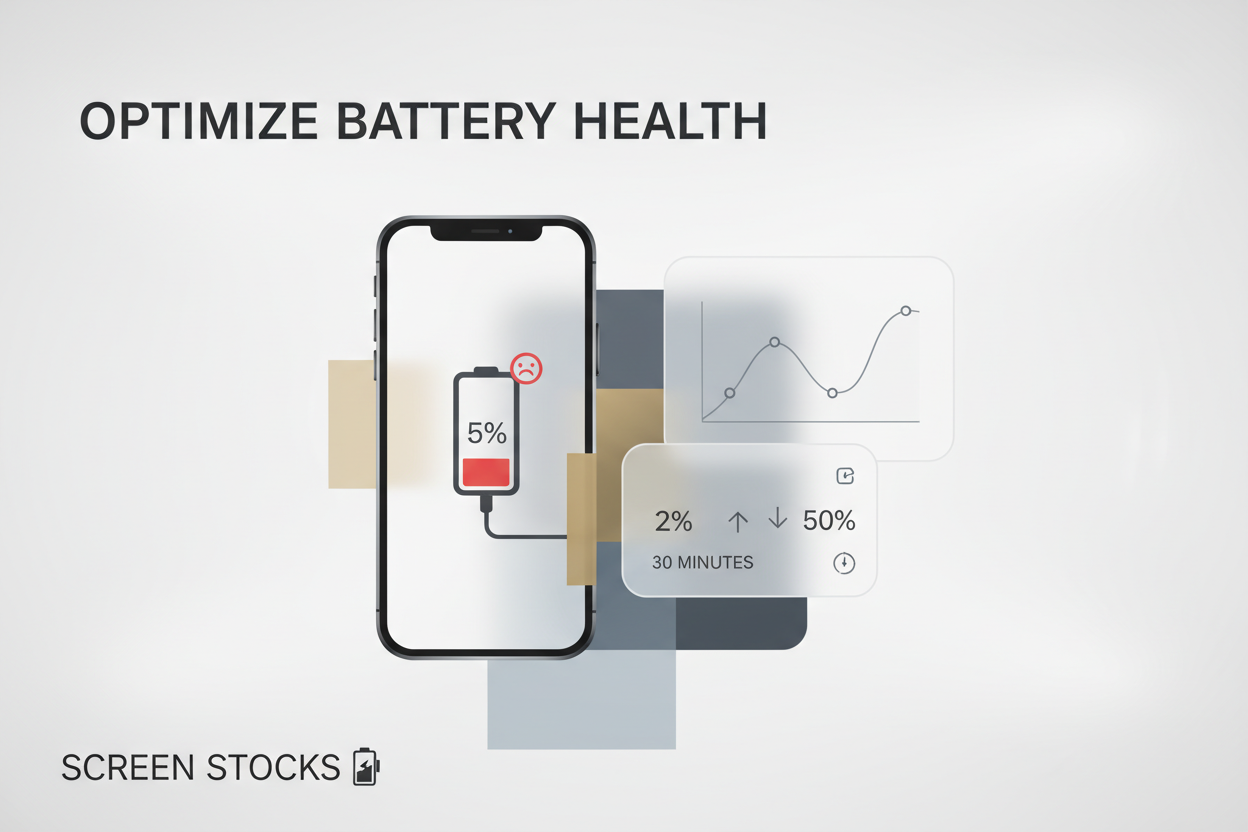
When your iPhone battery percentage stuck on one number, it feels like your phone’s trolling you. The issue often links to battery, capacity, and system-level quirks. Breaking down “iPhone / battery / percentage / stuck” helps target both software and hardware triggers. Below are practical fixes to stop that frozen battery percentage and keep power readings honest.
Calibrate Battery Capacity Through Full Charge-Drain Cycles
When the iPhone battery percentage stuck bug shows up, recalibrating the battery capacity can reset the calibration logic inside the power management system.
-
Start with a controlled charge and drain cycle:
-
Let the battery drop below 5% until low energy warning appears.
-
Power off for 30 minutes to stabilize internal capacity readings.
-
Charge uninterrupted to 100%.
-
-
Then refine the cycle process:
-
Keep the device cool during charge.
-
Avoid fast chargers if heat spikes.
-
Repeat once monthly, not weekly.
-
| Cycle Phase | Battery % | Voltage (V) | Temp (°C) | Calibration Effect |
|---|---|---|---|---|
| Low Warning | 5% | 3.5V | 28°C | Reset baseline |
| Shutdown | 0–2% | 3.3V | 27°C | Deep drain sync |
| Mid Charge | 50% | 3.8V | 30°C | Stabilize reading |
| High Charge | 80% | 4.0V | 31°C | Align indicator |
| Full Charge | 100% | 4.2V | 29°C | Complete mapping |
This recalibration often fixes iPhone battery display stuck issues without hardware repair.
Limit Background App Activity for Improved Energy Efficiency
If your iPhone battery percentage stuck at 80 or 100, rogue background apps might be messing with power consumption and energy efficiency.
Focus on settings optimization:
-
Inside Battery:
-
Review top app activity drains.
-
Disable unnecessary background apps refresh.
-
-
Under Display:
-
Lower refresh rate to reduce usage spikes.
-
Shorten auto-lock time.
-
Small tweaks add up. Heavy social apps running in the background distort optimization signals, making the battery percentage frozen problem worse. Keeping activity lean helps stabilize reporting and improves overall energy efficiency.
Update Operating System to Patch Power Consumption Bugs
A stale operating system can trigger iPhone battery percentage stuck glitches due to unresolved bugs in power consumption tracking.
Do this:
-
Go to Software Update.
-
Install latest patches.
-
Restart to refresh the system kernel.
-
Monitor performance for 24 hours.
Apple regularly improves stability around battery reporting. If the battery percentage not updating feels random, firmware-level fixes usually smooth it out. Shops like Screen Stocks often recommend updating before replacing any parts, since software faults mimic hardware failures.
Manage Thermal Loads to Prevent Charge Level Display Errors
Heat is sneaky. Poor thermal management affects the sensor that reports charge level, leading to iPhone battery percentage stuck readings.
Keep control of temperature through layered habits:
-
Daily Cooling Habits
-
Avoid gaming while charging.
-
Remove thick cases during heavy use.
-
-
Environmental Awareness
-
Keep device below 35°C.
-
Avoid car dashboards in summer.
-
-
Hardware Protection
-
Protect the power management IC from repeated overheating cycles.
-
Use certified cables to prevent internal heat spikes.
-
Persistent display errors sometimes reflect internal stress rather than software faults. If heat damage has already affected battery reporting, Screen Stocks technicians can run diagnostics to check cooling behavior and battery health metrics before recommending a fix.
When handled early, even an iPhone battery percentage stuck issue becomes manageable instead of a full-on battery swap.
FAQs about Iphone Battery Percentage Stuck
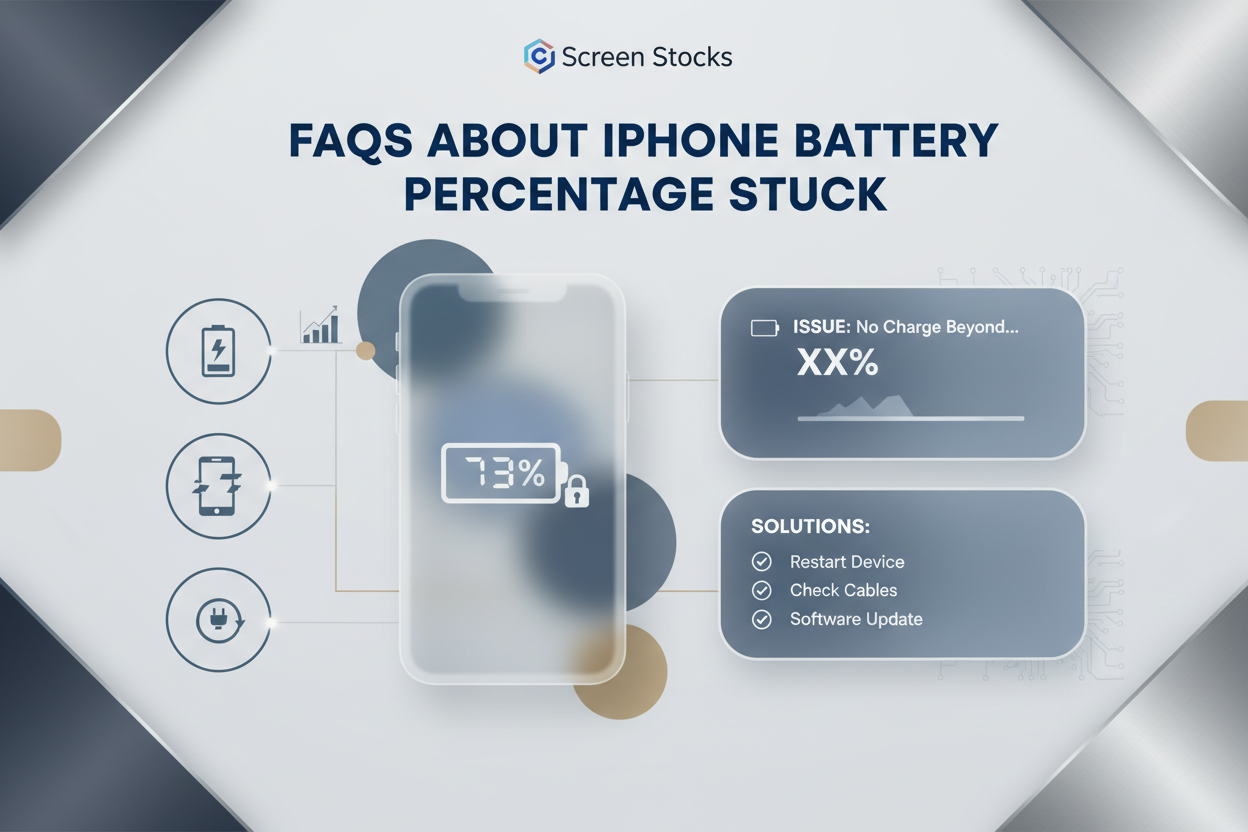
Why is my iPhone battery percentage stuck on one number?
When your percentage indicator refuses to move, the cause is usually tied to either software confusion or hardware miscommunication:
-
Software side
-
A minor software bug in the operating system
-
Glitched UI rendering freezing the battery icon
-
Outdated display driver failing to refresh the Charging animation
-
-
Hardware side
-
Unstable signal from the Power management IC
-
Loose battery connector or flex cable
-
Data delay between the logic board and display controller
-
On OLED, LCD, or Retina display panels, the issue is rarely about Resolution or Brightness—it’s often the system struggling to update the visible Charge level.
How do I fix an iPhone battery percentage stuck issue quickly?
Start simple, then escalate only if needed:
-
Restart device → clears temporary firmware glitches.
-
Force restart → refreshes the Display controller and power circuits.
-
Software update → patches known bugs affecting the Battery icon and Low battery warning.
-
Check System settings → confirm the Percentage indicator is enabled.
If the Charging animation moves but the number stays frozen, the issue is likely software-based.
If nothing updates at all, hardware diagnostics may be required.
Can screen or hardware problems cause the battery icon to freeze?
Yes—and this is where things feel dramatic.
A damaged Display panel (OLED, IPS, or AMOLED) may show ghosting or display artifacts that make the Battery icon appear stuck. In rare cases:
-
Faulty Digitizer → Touch unresponsiveness blocks UI refresh
-
Weak Power management IC → incorrect Battery capacity reporting
-
Poor Thermal management → system slows UI updates to reduce Power consumption
If you also notice screen flickering, dead pixels, or inaccurate Battery health status, run Diagnostic mode or consider professional repair. Sometimes the frozen number is just the surface of a deeper power issue.







Recent Comments